



Documenting my journey from mesh import to making tools, and beyond. Part One.
Its been a while, I tend to get involved in something and squeeze that fruit until there’s nothing left but pulp and seeds. My last exploration was using an indie voxel game engine, but that proved to be too limited – so I’m charting a course straight into the dark forest of pro “Triple A” game engines.
I’ve used Houdini before, and now I’m familiar with the interface and some of its (many) features. While it isn’t a prerequisite for any of the things I write about here, you can pick up the “Apprentice” version for free if you want to follow along.
The tools I’m working on use Python, and within Unreal Engine they’ll be using a mixture of Python and C++, but most of this can be generalized to any 3D Model making software that supports some kind of scripting within it. Blender uses Python, so these tools could be adapted – I’m using CSV files (Just regular text files with human-readable data), so any program that can write that and FBX mesh files should be just fine.
(I recommend this viewer for FBX files since it works on multiple platforms. Gives a good preview and lets you see if you need to address any surface problems.)
Where to begin?
It all started with a basic computer monitor model I made in Houdini FX, textured in a slapdash fashion with Adobe Substance Painter (RIP Allegorithmic):


In the beginning, my asset creation steps were: Make something in Houdini, save the mesh FBX, import into Substance Painter, throw on some textures, then export those textures to use inside of Houdini like the above example.
That’s cool, but when it came to pushing it to a game engine like Unreal, I ran into a problem:

It had textures in Houdini, and I thought since the FBX file format allows you to ‘point’ to texture files that it would pick those up and apply them automatically. Nope!
Here’s what the material looked like in Unreal Engine:

After some cursing and digging around, I found that UDIM texture support in FBX seems to be limited right now to Autodesk’s Action software, and 3D Modeling programs like Maya/Houdini, etc.
I wanted to use UDIM (Also referred to as Virtual or Streaming Textures) because it allowed high-quality texture maps to be used, which appealed to me. I may still fall back to the more common method of “regular” texture maps, but for now I had my heart set on UDIMs.
I knew that Unreal Engine could support it – but I wasn’t going to get instant satisfaction from using an FBX file I made in Houdini. When you export meshes in FBX file format with Houdini, it uses a “token” to tell the Material Node that you’re working with a UDIM texture set.
Here’s how they look in my asset folder:


Each ‘100x’ starting at 1 and going to 7 are the texture maps spread out across different UDIM tiles. In Unreal Engine, you can select just the ‘1001’ of each set and drag it into the content browser. Unreal will understand they are UDIM/Virtual Textures, and import them correctly.
Here’s what the “token” looks like in Houdini when you’re assigning them to a material:


On a whim, I exported the FBX file in ASCII mode, and edited all references to the UDIM token to ‘1001’, just to see if Unreal Engine would understand its was part of a set. The results were not what I had imagined:

On the plus side, at least it attempted to ‘wire up’ all the sampler nodes:

These results meant that I’d have to use the Unreal Editor to create a Material, and then wire up the individual sampler nodes to tell it exactly how I’m using the UDIM textures, instead of it happening automatically.
If you multiply that effort over a lot of assets to be made, that burns a lot of time hand-editing things. There had to be a better way than just grinding through it manually.
Turns out, there was. But it would require a bit of work.
The Descent Into Automation:
Like anything new, it was a bit annoying to get started, since Application Programming Interfaces (API’s) usually don’t give you much in the way of examples. Here’s the main page for the Python API in Unreal Engine, for instance.
If your eyes didn’t glaze over in the first few minutes, you must be a life-long programmer, probably with a career in Information Technology. Anyone starting out with this would be pretty frustrated, as it isn’t geared towards beginners.
Adding to that, the examples I found with search engines ended up going over the river and through the woods into a “Backrooms” pocket dimension before I even finished reading the tenth line of code.
My first attempt to make a python script to handle the importing task was hardcoded, inflexible and banged out in a short amount of time. But I knew that I had to understand it first before I added a infinite improbability drive and popped by Alpha Centauri.
I knew I didn’t have to do any specific file type checking, which was a plus. The Unreal Editor was smart enough to figure that part out on its own.
Behold, in all its rough glory:
(Things in “< >” are meant to be replaced with your specific paths)
# Some basic setup, importing the main module and then setting a few things for easier reference

import unreal

# These references save you typing all this over and over
AT = unreal.AssetToolsHelpers.get_asset_tools()
AID = unreal.AutomatedAssetImportData()
EAL = unreal.EditorAssetLibrary

# Set paths to make the list easier to construct - Windows paths use '/' here
importBasePath = '<drive letter>:/<your path to a FBX file>'
importTexturePath = '<drive letter>:/<your path to UDIM texture files>'

# This is the list to our assets - you only need to include the 'head' of the UDIM sets here, UE5 understands they're virtual
# I'm using Substance Painter, so the exported names use the conventions below. Substitute for whatever yours happens to be
importFileNames = [importBasePath + 'yourMeshName.fbx',
importTexturePath + '<YourTextureName>_DefaultMaterial_BaseColor.1001.png',
importTexturePath + '<YourTextureName>_DefaultMaterial_Normal.1001.png',
importTexturePath + '<YourTextureName>_DefaultMaterial_OcclusionRoughnessMetallic.1001.png']

# Now we set the destination for our assets - /Game is the default root here in the UE5 Content Browser
AID.destination_path = '/Game/<your path where you want this>'
AID.filenames = importFileNames

# Optionally when testing you may want to just replace things, this statement does that
AID.replace_existing = True

# Now lets import using our list
AT.import_assets_automated(AID)

# Now lets create a new blank material
AT.create_asset(asset_name='YourMaterialName', package_path='/Game/<your path where you want this>', asset_class=unreal.Material, factory=unreal.MaterialFactoryNew())

# To add -- Wiring up the UDIM textures to this blank material.... I haven't done this part yet, I'll update when I do...

# Assign the texture to the mesh
# Maybe there's a more elegant way to do this, but I just loaded a reference to the mesh and the blank texture

# Mesh reference
myAsset = unreal.load_asset('/Game/<your path>/<your mesh name>')

# Texture reference
myMatToAssign = unreal.load_asset('/Game/<your path>/<your texture name>')

# Set material
myAsset.set_material(0, myMatToAssign)
Not a bad start, but it was limited. What I needed was something more dynamic that would read my project folder path and mirror its structure in the UE Content Browser. After a few intermediate versions, I came up with this (ASCII Art needs to make a comeback.):
##  ______      ___________          _
## /_  __/___ _/ / /_  __(_)___ ___ ( )_____
##  / / / __ `/ / / / / / / __ `__ \|// ___/
## / / / /_/ / / / / / / / / / / / / (__  )
##/_/  \__,_/_/_/ /_/ /_/_/ /_/ /_/ /____/
##
## Automagic Asset Import & Material Wiring Utility
## Less manual drudgery, more asset creation!
##
## Note - This relies on a project structure like:
## < Root Project Path>< Project Asset FBX Directiory >
##			< Asset "Texture" Sub-directory >
## Failing to provide any textures in this sub-directory will result in a material created and 'wired' up, but the texture slots will be blank

# ---- Modules

import unreal
import pathlib # This is for filtering directories

# ---- Variables

test_flag = "False" # Just to make things easier when testing material assignment - Make sure to change the list used in the last FOR loop
#test_flag = "True"

# Unreal utility references
AT = unreal.AssetToolsHelpers.get_asset_tools()
AID = unreal.AutomatedAssetImportData()
MEL = unreal.MaterialEditingLibrary
EAL = unreal.EditorAssetLibrary

# Path declarations
# Automatic destination path working, initialize global var
importDestPath = ''
myProjectPath = 'YourProjectPathHere\Assets' # Root path to scan for files

# Global list vars for asset lists
FBXList = []
TextureList = []

# New list from scanned folders
scannedFileNames = []

# Test fileset definitions - Just useful if doing dev testing on a smaller sub-set of assets - A lot has changed, so might not work now
# Your project path to FBX meshes here
test_FBXList = ['YourPathHere\Mesh_YourMeshName.fbx']
# Your project path to Textures here
test_TextureList = ['YourPathHere\Textures\yourBaseColor.1001.png'] # etc...

# ---- Functions

# This function takes a set object, output list and converts to a list of strings
def convertSet(mySetObject, myOutputList):
	for item in mySetObject:
		tempstr = str(item)
		myOutputList.append(tempstr)

	return

def extractDestPath(myPathRaw): # This takes the first raw fbx import path and determines structure for destination
	tempIndex = -1
	destPathList = []
	myDestPath = "/Game/Testing" # For now, this will change later
	tempPathLength = -1
	tempSplitPath = myPathRaw.split('\\')
	# Determine where "Assets" begins
	for idx, folder in enumerate(tempSplitPath):
		if folder == "Assets":
			tempIndex = idx

	# Now iterate based on start index and build the destination path
	for idx, folder in enumerate(tempSplitPath):
		if idx >= tempIndex:
			destPathList.append(folder)

	tempPathLength = len(destPathList)
	# Iterate final list and build destination path, with '/Game' as root
	for idx, folder in enumerate(destPathList):
		if idx <= (tempPathLength-2): # Leave off last element since its a file
			myDestPath = myDestPath + '/' + folder

	# Debug
	#unreal.log_warning("Extracted destination path is: " + myDestPath)

	return myDestPath

# This function takes your project root and makes different string element lists for further processing
def readProjectAssets(assetRootPath):
	# Temp destination path
	tempDestPath = ""
	# Temp list merging all results
	masterOutputList = []
	# Get directory contents under Assets
	assetListRaw = pathlib.Path(myProjectPath) # Set root directory to recursively make list from
	# Isolate FBX, UDIM Textures
	FBX_Assets = assetListRaw.rglob("*.fbx")
	Texture_Assets = assetListRaw.rglob("*_DefaultMaterial_*.1001.*") # Only returns the 'head' of UDIM texture sets
	# Convert from rglob to set - might be redundant, but whatever, I need to get some work done lol
	FBX_SetObject = map(str, FBX_Assets)
	Texture_SetObject = map(str, Texture_Assets)
	# Iterate set objects and convert to string list
	convertSet(FBX_SetObject, FBXList)
	convertSet(Texture_SetObject, TextureList)
	# A hand test flag just in case you want to do some debug on a limited set defined above
	if test_flag == "False":
		masterOutputList = FBXList + TextureList

	if test_flag == "True":
		masterOutputList = test_FBXList + test_TextureList

	# Technically I could do this on the FBXList, but leaving it like this...
	tempDestPath = extractDestPath(masterOutputList[0]) # Process based on first import item

	return FBXList, TextureList # Return separate lists for importing

def dumpListContents(myInputList):
	for item in myInputList:
		unreal.log_warning(item)

	return

def importAssets(myMeshList, myTextureList):
	# This method 'throttles' things on its own since you're driving a loop and resetting the
	# properties of the task every iteration -- seems it needs to do this or it fails making things fast enough
	meshTasks = []
	textureTasks = []
	task = unreal.AssetImportTask()
	# Debug
	extractMeshList = []
	extractTextureList = []
	# Do the meshes
	for pathItem in myMeshList:
		# Clear list every iteration
		extractMeshList = []
		# Set properties
		task.set_editor_property('filename', pathItem) # Source filepath
		task.set_editor_property('destination_path', extractDestPath(pathItem)) # Update dest path
		task.set_editor_property('automated', True)
		task.set_editor_property('replace_existing', True)
		meshTasks.append(task) # Shove task into list
		# Do import per iteration - testing doing batched again
		AT.import_asset_tasks(meshTasks) # Doing this here in the loop 'throttles' things.
		# Debug
		#extractMeshList.append(extractDestPath(pathItem))

	# Debug
	#unreal.log_warning("Extracted mesh list is: ")
	#dumpListContents(extractMeshList)

	# Do the textures
	for pathItem in myTextureList:
		# Clear list every iteration
		extractTextureList = []
		# Set properties
		task.set_editor_property('filename', pathItem) # Source filepath
		task.set_editor_property('destination_path', extractDestPath(pathItem))# + '/Textures') # Update dest path
		task.set_editor_property('automated', True)
		task.set_editor_property('replace_existing', True)
		textureTasks.append(task) # Shove task into list
		# Do import
		AT.import_asset_tasks(textureTasks) # Like above, doing it here 'throttles' things
		# Debug
		#extractTextureList.append(extractDestPath(pathItem))

	# Testing doing it all batched again -- this fails with the same problems as before. Interesting..
	#AT.import_asset_tasks(textureTasks)

	# Debug
	#unreal.log_warning("Extracted texture list is: ")
	#dumpListContents(extractTextureList)

#	# This method was fast, but couldn't update the destination paths dynamically like the above...
#	# Set import attributes - should be conditional on list type
#	AID.destination_path = importDestPath # Dest path for meshes
#	#AID.filenames = myAssetList # - deprecated
#	AID.filenames = myMeshList # Do meshes first
#	AID.replace_existing = True # Supposed to replace existing, but when testing it seemed to prompt anyway
#	# Do mesh import
#	AT.import_assets_automated(AID)
#	# Now set up texture imports
#	AID.destination_path = importDestPath + '/Textures' # Dest for textures
#	AID.filenames = myTextureList
#	AID.replace_existing = True
#	# Do texture import
#	AT.import_assets_automated(AID)

	return

def wireUpTextures(myMaterialPath, myMaterialAssetName): # Textures are assumed to be under impoortDestPath + "Textures" subfolder
	# Debug
	#unreal.log_warning("Wiring up texture with material name: " + myMaterialAssetName)
	# Get material reference for wiring operations
	tempMatObject = unreal.load_asset(myMaterialPath + '/' + myMaterialAssetName)
	# Split out prefix to use asset name in reference - naming convention is 'Mat_YourMaterialName' in this example
	UDIM_Name = (myMaterialAssetName.split('_'))[1]
	# Set up references to UDIM textures we've already imported into the content browser
	# Texture name format: 'Mesh_<assetname>_DefaultMaterial_<texturetype>
	UDIM_Base_Color = unreal.load_asset(myMaterialPath + '/Textures' + '/Mesh_' + UDIM_Name + '_DefaultMaterial_BaseColor')
	UDIM_Normal = unreal.load_asset(myMaterialPath + '/Textures' + '/Mesh_' + UDIM_Name + '_DefaultMaterial_Normal')
	UDIM_Occlusion_Roughness_Metallic = unreal.load_asset(myMaterialPath + '/Textures' + '/Mesh_' + UDIM_Name + '_DefaultMaterial_OcclusionRoughnessMetallic')
	# Make Nodes - Target Material Reference, Sampler Node, X coord, Y coord
	Tex_BaseColor = MEL.create_material_expression(tempMatObject, unreal.MaterialExpressionTextureSample, -400, 0)
	Tex_Normal = MEL.create_material_expression(tempMatObject, unreal.MaterialExpressionTextureSample, -400, 300)
	Tex_OccRoughMetallic = MEL.create_material_expression(tempMatObject, unreal.MaterialExpressionTextureSample, -400, 600)
	# Connect sampler Nodes to material
	MEL.connect_material_property(Tex_BaseColor, "RGB", unreal.MaterialProperty.MP_BASE_COLOR)
	MEL.connect_material_property(Tex_Normal, "RGB", unreal.MaterialProperty.MP_NORMAL)
	# In this case different color channels represent properties:  Red = Occlusion, Green = Roughness, Blue = Metallic
	# Properties from unreal.MaterialProperty:
	# 'MP_AMBIENT_OCCLUSION', 'MP_ANISOTROPY', 'MP_BASE_COLOR', 'MP_EMISSIVE_COLOR', 'MP_METALLIC', 'MP_NORMAL', 'MP_OPACITY', 'MP_OPACITY_MASK', 'MP_REFRACTION', 'MP_ROUGHNESS', 'MP_SPECULAR', 'MP_SUBSURFACE_COLOR', 'MP_TANGENT'
	MEL.connect_material_property(Tex_OccRoughMetallic, "R", unreal.MaterialProperty.MP_AMBIENT_OCCLUSION)
	MEL.connect_material_property(Tex_OccRoughMetallic, "G", unreal.MaterialProperty.MP_ROUGHNESS)
	MEL.connect_material_property(Tex_OccRoughMetallic, "B", unreal.MaterialProperty.MP_METALLIC)
	# Set Texture Sample nodes to UDIM texture reference
	Tex_BaseColor.texture = UDIM_Base_Color
	Tex_Normal.texture = UDIM_Normal
	Tex_OccRoughMetallic.texture = UDIM_Occlusion_Roughness_Metallic
	# Set sampler node type for Virtual Color / UDIM
	# Properties from unreal.MaterialSamplerType:
	# SAMPLERTYPE_ALPHA', 'SAMPLERTYPE_COLOR', 'SAMPLERTYPE_DATA', 'SAMPLERTYPE_DISTANCE_FIELD_FONT', 'SAMPLERTYPE_EXTERNAL', 'SAMPLERTYPE_GRAYSCALE', 'SAMPLERTYPE_LINEAR_COLOR', 'SAMPLERTYPE_LINEAR_GRAYSCALE', 'SAMPLERTYPE_MASKS', 'SAMPLERTYPE_NORMAL', 'SAMPLERTYPE_VIRTUAL_ALPHA', 'SAMPLERTYPE_VIRTUAL_COLOR', 'SAMPLERTYPE_VIRTUAL_GRAYSCALE', 'SAMPLERTYPE_VIRTUAL_LINEAR_COLOR', 'SAMPLERTYPE_VIRTUAL_LINEAR_GRAYSCALE', 'SAMPLERTYPE_VIRTUAL_MASKS', SAMPLERTYPE_VIRTUAL_NORMAL
	Tex_BaseColor.set_editor_property("SamplerType", unreal.MaterialSamplerType.SAMPLERTYPE_VIRTUAL_COLOR)
	Tex_Normal.set_editor_property("SamplerType", unreal.MaterialSamplerType.SAMPLERTYPE_VIRTUAL_NORMAL)
	Tex_OccRoughMetallic.set_editor_property("SamplerType", unreal.MaterialSamplerType.SAMPLERTYPE_VIRTUAL_COLOR)

	return

# Create blank materials, wire up sampler texture nodes, assign material to mesh
# Note - when you are testing using a limited set, this needs to use test_FBXList
def textureAssets(myMeshPaths):
	for meshName in myMeshPaths: # For dynamic folder import
	# Debug
	#unreal.log_warning("Using mesh path for texture creation/wiring: " + meshName)
	#for meshName in test_FBXList: # For testing
		if meshName is not None: # Basic check in case of errors
			# Strip everything except the actual 'Mesh_<fbx mesh name>' in the list
			# Split out the path slashes first
			pathSplitRaw = meshName.split('\\')
			# Return last element which is meshfilename.fbx
			fileNameRaw = pathSplitRaw[-1]
			# Split out the <filename>.<fbx> to get the asset name
			splitDot = fileNameRaw.split('.')
			fbxAssetName = splitDot[0]
			# Strip out the 'Mesh_' prefix on the fbx filename -- Its assumed all fbx meshes are named this way
			splitMeshPrefix = fbxAssetName.split('_')
			# Add our material prefix -- If you don't like my naming conventions, feel free to change it - just catch it in the other functions
			materialAssetName = 'Mat_' + splitMeshPrefix[1]
			# Debug
			#unreal.log_warning("Material to create is: " + materialAssetName)
			# Create our blank material with the same asset name
			materialDestPath = extractDestPath(meshName)
			AT.create_asset(asset_name=materialAssetName, package_path=materialDestPath, asset_class=unreal.Material, factory=unreal.MaterialFactoryNew())
			# Debug
			#unreal.log_warning("Create Material with Path: " + materialDestPath + " Name: " + materialAssetName)
			# Wire up the materials with our imported UDIM textures - This is easily changed to use regular 2D Texture types, see function
			wireUpTextures(materialDestPath, materialAssetName)
			# Assign wired material to the imported fbx asset
			myMeshAssetFullPath = materialDestPath + '/' + fbxAssetName # path to mesh, mesh name
			refMeshAsset = unreal.load_asset(myMeshAssetFullPath)
			myMaterialAssetFullPath = materialDestPath + '/' + materialAssetName # path to material, material name
			refMaterialAsset = unreal.load_asset(myMaterialAssetFullPath)
			refMeshAsset.set_material(0, refMaterialAsset)

	return

# --- Main Execution Steps

# Debug - using warning color to highlight output for visibility in the UE5 Log Window
unreal.log_warning("----------[ TallTim's Automagic Asset Import & Material Wiring Utility ]---------- \n")

# Generate our FBX and UDIM path/filenames from our root project path
meshFileNames, textureFileNames = readProjectAssets(myProjectPath)
# Do our imports based on the root project path
importAssets(meshFileNames, textureFileNames)
# Create materials, Wire up textures and assign them to meshes
textureAssets(meshFileNames)
This is getting quite long, and its only the first part – but the code is worth the wait. The asset importer depends on a folder structure like this:
Assets
└───InteriorProps
    └───Computers
        ├───Keyboards
        │   └───IntroKeyboardWithPorts
        │       └───Textures
        └───Monitors
            └───IntroBasicMonitor
                └───Textures
You need a “Textures” sub-directory under each folder holding an exported FBX mesh file. If you don’t like that structure, you can edit the code – but its probably easier to just experiment with it as it is starting out.
It sure beats having to import everything, create textures and wire up the materials by hand!
You’re probably wondering how to use this in Unreal Engine. Here’s the python docs from Unreal Engine. It goes through all the steps, so you can be sure that you’re set up to run python scripts.
Here’s my basic setup in UE:

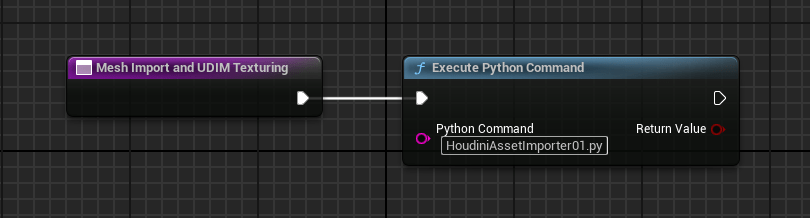
To start, you create a Editor Utility Blueprint in the Content Browser by right clicking within it, and selecting “Editor Utilities” and then “Editor Utility Blueprint”. The class I selected was “Editor Utility Object”. Once it exists in the Content Browser you can rename it, and double-click it to launch the Blueprint Editor.
The purple node to the left is a “call function” node, which you add by going to the left pane, under “Event Graph” you’ll see a category called “Functions” with a plus sign to the right. Click on that, and you’ll have a new purple node which you can rename.
Then add a “Execute Python Command” node by hitting the Tab key, and searching for “execute”. You’ll see it in the list there. After clicking on that name, it will create the node. Connect the white arrow from the “call function” node to the “Execute Python Command” node by dragging from the left to the right white arrow.
Inside the “Python Command” text box, you can type the name of the Python script you want to run. You can choose to store those per-project, but I prefer to have them accessible throughout the Engine itself, so I store them here:
YourDrive:\Epic Games\UE_5.3\Engine\Content\PythonIf you copy my scripts and save them there with a .py extension Unreal Engine will be able to execute them, no matter what project you’re working on. However, you do need a Editor Utility Blueprint in your project in the Content Browser to do so.
Hope that helps, more to come…