Houdini Node Generation

I’m grinding on a personal project that will require a lot of 3D assets, meshes that will be textured and exported to a game engine. In this post I’m sharing a python script that can be put into a Houdini shelf tool and executed to give a starting point, without having to memorize all the different parameters that need to be set.

Here’s it is, I’ll explain more after the code block:

# --- Modules

import datetime # Console timestamping

# --- Variables

# Vertical node graph spacing
vertOffset = hou.Vector2(0, -1.05)
vertOffsetSum = hou.Vector2(0, 0)

# Stores node object references, paths
assetNodeRefs = [] # Stores node object references
assetNodePaths = [] # Stores full tree paths of nodes

# --- Functions

# Utility that spits out all the parameters for a given node
def dumpParms(myNodePath):
tempNodeParms = hou.node(myNodePath).parms()

# Iterate and print them out
for idx, param in enumerate(tempNodeParms):
if idx == 0: # Print node path once
print("For node: " + myNodePath)
tempValue = param.eval()
tempName = param.name()
print("Name: " + tempName + " [ " + str(tempValue) + " ]") # Some need to be cast str

return

def makeNode(myPath, myType):
# Debug
print("Making node at: " + myPath + " Type: " + myType)
# Assign node reference
tempNodeRef = hou.node(myPath).createNode(myType)
# Keeping track of node object references in makeDefaultAsset function
#spawnedNodes.append(tempNodeRef) # Original - Deprecated
# Get created node path
tempNodePath = tempNodeRef.path()

return tempNodeRef, tempNodePath

# I don't like the X, Y offset for automatic layout, just want a Y offset for created nodes
def adjPosition(myNodeRef, myOffset): # Takes node reference, applies Y offset
# Global var for sum
global vertOffsetSum
# Get current node position
tempNodePos = myNodeRef.position() # [X, Y]
# Apply Y offset
offsetNodePos = hou.Vector2(0, (tempNodePos[1] + vertOffsetSum[1]))
# update offset sum
vertOffsetSum = (0, (vertOffsetSum[1] + myOffset[1]))
# Apply cumulative offset position to node
myNodeRef.setPosition(vertOffsetSum)

return offsetNodePos

# Takes two node object references
def wireNodes(nodeFromRef, nodeToRef): # Assumes first input index, first output index
# Make connection
nodeFromRef.setInput(0, nodeToRef, 0)

return

def getNodeRef(myNodeName): # Takes spawned node name, returns object reference if matched
tempNodeObj = None
for nodePath in assetNodePaths: # Using global list of stored spawned node paths
if hou.node(nodePath).name() == myNodeName: # Check node name - matches?
tempNodeObj = hou.node(nodePath) # Then get node object reference

return tempNodeObj

# First element is top "root" node of the structure - for more complex topologies, you'll have
# to make changes to this code, including my assumptions about created node names
# Nodes are created in the order listed, left to right, using node type names

assetNodeList = ['geo', 'box', 'groupcreate', 'xform', 'normal', 'uvunwrap', 'attribcreate',
'merge', 'uvlayout', 'material', 'groupcreate', 'output', 'rop_fbx']

# Parameter Settings Keys/List - Access syntax nodeParamsList[0]['nodename'][0]['paramkey']
# Yes, this assumes that the node name is the first ever created (nodename1), and for my uses
# it will be - this would require more thorough checking if that assumption isn't true
#
# Hovering your mouse cursor over a parameter in the Houdini node details pane provides the
# referenced parameter name in its pop-up, which is used below - or dump a node's parameters
# using my dumpParms(yournodetreepath) helper function I've provided

nodeParamsList = [{
'attribcreate1' : [
{'name1':'path'}
],
'uvlayout1' : [
{'correctareas' : 1}, {'axisalignislands' : 2}, {'scaling' : 1}, {'scale' : 1},
{'rotstep' : 0}, {'packbetween' : 0}, {'packincavities' : 1}, {'padding' : 1}, {'paddingboundary' : 1},
{'expandpadding' : 0}, {'targettype' : 1}, {'usedefaultudimtarget' : 1}, {'defaultudimtarget' : 1001},
{'tilesizex' : 1}, {'tilesizey' : 1}, {'numcolumns' : 10}, {'startingudim' : 1001}, {'stackislands' : 0}
],
'group2' : [
{'groupname' : 'rendered_collision_geo_ucx'}
],
'rop_fbx1' : [
{'sopoutput' : 'Mesh_AddPathChangeThisName.fbx'}, {'mkpath' : 1}, {'buildfrompath' : 1}, {'pathattrib' : 'path'},
{'exportkind' : 0}, {'sdkversion' : ' '}, {'vcformat' : 0}, {'invisobj' : 0}, {'axissystem' : 0},
{'convertaxis' : 0}, {'convertunits' : 1}, {'detectconstpointobjs' : 1}, {'exportendeffectors' : 0},
{'computesmoothinggroups' : 1}
]
}]

shaderParamsList = [{
'principledshader1' : [
{'basecolorr' : 1.0}, {'basecolorg' : 1.0}, {'basecolorb' : 1.0}, {'albedomult' : 1.0},
{'basecolor_usePointColor' : 0}, {'basecolor_usePackedColor' : 0}, {'rough' : 1.0}, {'metallic' : 1.0},
{'reflect' : 1.0}, {'baseBumpAndNormal_enable' : 1}, {'baseNormal_vectorSpace' : 'uvtangent'}
]
}]

# Note that on the ROP FBX node converting units is disabled
standinParamsList = [{
'polyreduce1' : [
{'percentage' : 50}
],
'rop_fbx2' : [
{'sopoutput' : 'Mesh_AddPathChangeScaleProxyName.fbx'}, {'mkpath' : 1}, {'buildfrompath' : 1}, {'pathattrib' : 'path'},
{'exportkind' : 0}, {'sdkversion' : ' '}, {'vcformat' : 0}, {'invisobj' : 0}, {'axissystem' : 0},
{'convertaxis' : 0}, {'convertunits' : 0}, {'detectconstpointobjs' : 1}, {'exportendeffectors' : 0},
{'computesmoothinggroups' : 1}
]
}]

def makeDefaultAsset(): # Make nodes based on node list of types
objRootPath = '/obj' # Root path for first geo node
matRootPath = '/mat' # Root path for material principle shader nodes
childPath = ''
# Create root, then child nodes
for idx, nodeType in enumerate(assetNodeList):
if idx == 0: # Root node?
tempNodeRef, tempNodePath = makeNode(objRootPath, assetNodeList[idx])
assetNodeRefs.append(tempNodeRef)
assetNodePaths.append(tempNodePath)
childPath = tempNodePath # Assign root path
else: # Child of root node, use root node path
tempNodeRef, tempNodePath = makeNode(childPath, assetNodeList[idx])
if idx > 1: # Start wiring nodes when we're at second child node inside root
# This assumes input index 0, from first output
tempNodeRef.setInput(0, assetNodeRefs[idx-1], 0)

assetNodeRefs.append(tempNodeRef)
assetNodePaths.append(tempNodePath)

# Iterate Nodes Parameter List and set parameters accordingly
for nodeName in nodeParamsList[0]:
# Get node object reference for spawned node name
tempObjRef = getNodeRef(nodeName)
# If we have an object reference, set parameter(s)
if tempObjRef is not None:
# Iterate through parameters and set them
for idx, setting in enumerate(nodeParamsList[0][nodeName]):
# Debug
#print("For node name: " + nodeName + " Setting " + str(idx) + " is: " + str(nodeParamsList[0][nodeName][idx]))
tempObjRef.setParms(nodeParamsList[0][nodeName][idx])

# Now adjust positions of all nodes
for nodeRef in assetNodeRefs:
adjPosition(nodeRef, vertOffset)

# Create Principle Shader Node in /mat context
shaderNodeRef, shaderNodePath = makeNode(matRootPath, 'principledshader')
# May not make sense to set all parameters here - but I have the full list archived in the project folder
# Set node name
shaderNodeRef.setName("mat_changethisname")
# Additional setup parameters
for idx, setting in enumerate(shaderParamsList[0]['principledshader1']):
# Debug
#print("For principled shader - Setting " + str(idx) + " is: " + str(shaderParamsList[0]['principledshader1'][idx]))
shaderNodeRef.setParms(shaderParamsList[0]['principledshader1'][idx])
# Assign to 'material1' '/obj' node object ref index [9] using 'materialpath1' parameter
assetNodeRefs[9].setParms({'shop_materialpath1' : '/mat/mat_changethisname'})

# Create two more nodes for 'stand in' objects used as scale proxies when constructing scenes/levels
polyReduceRef, polyReducePath = makeNode(childPath, 'polyreduce') # Reduce polygons
rop_fbx2Ref, rop_fbx2Path = makeNode(childPath, 'rop_fbx') # Another ROP fbx output
# Set polyreduce params, fbx params
for idx, setting in enumerate(standinParamsList[0]['polyreduce1']):
# Debug
#print("For node name: polyreduce1 " + " Setting " + str(idx) + " is: " + str(standinParamsList[0]['polyreduce1'][idx]))
polyReduceRef.setParms(standinParamsList[0]['polyreduce1'][idx])

for idx, setting in enumerate(standinParamsList[0]['rop_fbx2']):
# Debug
#print("For node name: rop_fbx2 " + " Setting " + str(idx) + " is: " + str(standinParamsList[0]['rop_fbx2'][idx]))
rop_fbx2Ref.setParms(standinParamsList[0]['rop_fbx2'][idx])
# Connect polyreduce1 to output of material1, connect rop_fbx2 to output of polyreduce1
wireNodes(polyReduceRef, assetNodeRefs[9]) # From node, To node - check function for labeling consistency
wireNodes(rop_fbx2Ref, polyReduceRef)

# Custom positioning using X and Y offset for these two nodes - using standInOffset:
collNodeRef = hou.node('/obj/geo1/group2') # Get group2/collision mesh node X, Y position [0, -11.55]
standInVertOffset = collNodeRef.position()
polyNodePos = hou.Vector2(-3.0, standInVertOffset[1])
rop_fbx2Pos = hou.Vector2(-3.0, (standInVertOffset[1] + (vertOffset[1] * 2)))
# Set positions
polyReduceRef.setPosition(polyNodePos)
rop_fbx2Ref.setPosition(rop_fbx2Pos)

return

# --- Main Exec

# Clear console a bit
print('\n' * 4)

# Timestamp Banner
timeStamp = datetime.datetime.now()
print("\n ----------[ TallTim - Default Asset Node Generator Exec: " + str(timeStamp) + " ]---------- \n")

# Generate Default Geometry Asset for Unreal Engine Export As FBX, With Collision Mesh
makeDefaultAsset()

#dumpParms('/obj/geo1/uvlayout1) # Get parameters

# set names by <nodeRef>.setName('myName')

Here’s the result, a generated network of nodes that takes less than a second:

I’ll step through why each node is there, including why I have two FBX output nodes – which may seem confusing at first, but it will make sense, I promise.

Keep in mind that this is in the path or context of Houdini’s ‘/obj’ level – while it is entirely possible to make other assets with this automatically, my first use was to create a ‘/obj/geo’ node with all its sub-nodes so I could start modeling something right away.

From the top down (I’m omitting numbers for most of them since Houdini puts a ‘1’ after the first instance of a node.):

  1. Box – This is a ‘primitive’ type in Houdini, which just creates a 6-sided cube. I’ll typically replace this with other things, curves, swept extrusions, whatever – the box is just there as a stand-in.
  2. Group – I like keeping things orderly, so for multi-mesh parts I will make group names for them which makes it easier to refer to if I need to do any specific actions on them later.
  3. Transform – Not absolutely necessary, but may be needed to place the object on the ‘ground’ construction plane.
  4. Normal – After the polygons have been created, I find it useful to have normals applied, since later UV mapping and texturing works much better if everything is uniform.
  5. UV Unwrap – This prepares the mesh for a later step when it comes to texture mapping.
  6. Attribute Create – This allows me to create a ‘path’ value that tells the FBX exporter my object consists of multiple meshes, very handy when using Substance Painter, since you can then easily mask and select individual parts.
  7. I just realized that my code example doesn’t set these parameters entirely (always something, there’s a lot of moving parts) – but the “Class” setting needs to be “Primitive” and “Type” needs to be “String”. Once this is set, you can type in something like: “intro_basic_monitor/monitor_frame” — where the first part is the ‘root’ model name, and the latter is the part name. Really helps later down the line.
  8. Merge – This is where you’d combine all of your parts using the nodes described so far. I left this in because I rarely make anything that is just one single part.
  9. UV Layout – Here’s where the meat of setting up texture mapping happens. I’m using UDIMs, a method to spread high resolution textures over a larger texture space, but this would still be necessary if you were using regular texturing methods. Setting parameters here automatically really saves time.
  10. Material – This node assigns your texture, which lives under the ‘/mat’ context – yes, this script automagically created a material shader for you too. You’ll have to rename the material and such, but helps to have it set up already.
  11. You’ll notice that there’s a branch ‘split’ here – and I’ll explain briefly why. The ‘rop_fbx1’ node is my high-resolution output mesh. The ‘rop_fbx2’ node is used for ‘proxies’ that I create so I can assemble a large scene/level in Houdini without copying their associated node netorks, polyreduced and referencing a FBX file. This keeps overhead low and allows me to work on a new asset for a scene without using up a lot of CPU/GPU to do it. May not matter if you have a beast of a rig, but for me I know my scenes will have a lot of things in them, so I’m getting ahead of that now.
  12. The next two nodes are related to Unreal Engine and collision meshes used in the physics engine.
  13. Group2 – The name ‘rendered_collision_geo_ucx’ tells UE that it should create a collision mesh that matches the following node.
  14. Output – This node is how UE understands the object geometry and allows it to create a collision mesh on import. You can customize these, but I haven’t attempted that yet.
  15. rop_fbx1 – As I described above, this node saves a high-resolution mesh to a path specified, with the proper parameters. You’ll have to specify the path yourself, its set to some dummy value here.

Another note about this python script – the ‘assetNodeList’ variable assumes that the FIRST node is the ‘root’ under the ‘/obj’ context. The rest of the nodes are children of this ‘root’ node. If you wanted to make a different asset using this, you’d have to change how I detect/handle the root node type, but its totally doable with a few small alterations.

That’s it for now, quite a long post. I’ll post more as I get time.

Houdini Scene Export To Unreal

Today I’m sharing at shelf tool that I wrote for Houdini, but the end result can be duplicated in other 3D applications like Blender. All you need is to follow the format and export Object Name, Position, Rotation, Scaling like I have. Here’s a sample of how that output looks:

ObjName,Position,Rotation,Scale
Mesh_TestCube01,"[0.0, 0.0, 0.0]","[0.0, -45.0, 0.0]","[1.0, 1.0, 1.0]"
Mesh_TestCube02,"[-0.4, 1.25, 0.0]","[0.0, 0.0, 0.0]","[0.1, 0.5, 0.5]"

Not too intimidating, right? My aim was to make this as simple as possible, so any 3D modeling application can produce this output.

Here’s the shelf tool Python script, I’ll explain the design assumptions after the code block:


# --- Modules

import csv, os, sys
import datetime # Console timestamping
import math # Truncating decimals

# --- Variables

exportNames = []
exportPaths = []
exportPropList = []

# --- Functions

def childrenOfNode(node, filter): # Returns full path for filter type
paths = []

if node != None:
for n in node.children():
t = str(n.type())
if t != None:
for filter_item in filter:
if (t.find(filter_item) != -1):
# Append raw path list matching filter
paths.append(n.path())

return paths

def truncate(number, decimals=0): # Truncates decimals to a given precision
factor = 10.0 ** decimals

return math.trunc(number * factor) / factor

def vectorToFloats(myVector): # Takes vector object and returns elements
tempFloatList = []
# Need to truncate values, currently getting 16-decimal precision, lol
# Functionally same as myVector.x()
tempX = truncate(myVector[0], 3)
tempY = truncate(myVector[1], 3)
tempZ = truncate(myVector[2], 3)
tempFloatList = [tempX, tempY, tempZ]

return tempFloatList

def getFBXPrefix(myNodePath): # Uses node path to extract fbx prefix
# When constructing scenes, I'm using file nodes to load the exported .fbx
# of individual assets - so I need to distinguish from a scene that has them
# versus one that does not

if hou.node(myNodePath + '/rop_fbx1') is None:
fbxNode = hou.node(myNodePath + '/file1')
fbxFileName = fbxNode.parm('file').eval()
else:
fbxNode = hou.node(myNodePath + '/rop_fbx1')
fbxFileName = fbxNode.parm('sopoutput').eval() # Get param value

#print("FBX output parameter is: " + fbxFileName + "\n")
# split slashes
fbxNameSplit = fbxFileName.split('/')
# Get last element for output filename
fbxNameRaw = fbxNameSplit[-1]
# Split out .fbx extension
fbxNameSplit = fbxNameRaw.split('.')
# Get FBX output filename
fbxOutputName = fbxNameSplit[0]
print("Output fbx file prefix is: " + fbxOutputName + "\n")

return fbxOutputName

def getNodePosRotScale(myNodePath): # Gets info, returns list
tempObjList = [] # Temp list to store properties
tempPathSplit = myNodePath.split('/')
# Instead of using object name, using output filename prefix from rop_fbx1
tempObjName = getFBXPrefix(myNodePath)
# Get next to last element of path split for obj name
#tempObjName = tempPathSplit[(len(tempPathSplit)-1)]
# Get reference to node
tempObj = hou.node(myNodePath)
# Get world transform
tempObjWorld = tempObj.worldTransform()
# Get position as a vector
tempObjPos = tempObjWorld.extractTranslates() # 'srt' is the default
# Get rotations
tempObjRot = tempObjWorld.extractRotates()
# Get Scaling
tempObjScale = tempObjWorld.extractScales()
# Debug - objects are vector3, messing with casting/stripping strings
#print("Pos: " + str(tempObjPos).split(','))
# Need to figure out casting from Vector3 to string
vecPosFloats = vectorToFloats(tempObjPos)
vecRotFloats = vectorToFloats(tempObjRot)
vecScaleFloats = vectorToFloats(tempObjScale)
# Debug
#print(str(vecPosFloats))
# Populate list - name, position, rotation, scaling
#tempObjList = [tempObjName, tempObjPos, tempObjRot, tempObjScale]
tempObjList = [tempObjName, vecPosFloats, vecRotFloats, vecScaleFloats]

return tempObjList


# --- Main Exec

# Filter For Object Geo Nodes
node_root_path = '/obj'

exportPathsRaw = childrenOfNode(hou.node(node_root_path),["Object geo"])

# Clear console a bit
print('\n' * 4)

# Debug
timeStamp = datetime.datetime.now()
print("\n ----------[ TallTim - CSV To Unreal Export Tool at " + str(timeStamp) + " ]---------- \n")

# Search for UEA suffix in object node names
for pathItem in exportPathsRaw:
pathSplit = pathItem.split('_')
# Debug
print("UEA Search loop - Path Item is: " + pathItem)
# Error on ScaleReference_UEA
# AttributeError: 'NoneType' object has no attribute 'parm'
# I have to look at file nodes

if pathSplit[-1] == 'UEA': # Got export suffix?
# Get node information using path
myListResult = getNodePosRotScale(pathItem)
print(myListResult)
print("\n")
exportPropList.append(myListResult) # Build final list

csvPath = '<YourExportPathHere>'
# With quote MINIMAL option headers appear as they should
csvHeaders = ['ObjName','Position','Rotation','Scale']
# Options - NONNUMERIC, MINIMAL, NONE - requires escapechar='<char>'
#csvQuoteType = csv.QUOTE_NONNUMERIC
csvQuoteType = csv.QUOTE_MINIMAL
#csvQuoteType = csv.QUOTE_NONE

# Get hip project filename for scene export
projNameRaw = os.path.dirname(hou.hipFile.name())
# Split out slashes
projNameSplit = projNameRaw.split('/')
# Get project name from file
projName = projNameSplit[-1]
# Full write path and filename
csvPathFilename = csvPath + projName + '.csv'

# Open file for writing CSV
with open(csvPathFilename, mode='w', encoding='utf-8') as csvfile:
# Create writer object for file
writer = csv.writer(csvfile, delimiter=',', quotechar='"', quoting=csvQuoteType, lineterminator='\n')
# Write header row
writer.writerow(csvHeaders)
# Iterate final list and write rows
for propRow in exportPropList:
writer.writerow(propRow)

Houdini is a node-based system, so any SOP (Surface OPerator – anything that makes meshes) can have a name assigned to it. This looks for a name format like: YourMeshName_UEA the suffix stands for “Unreal Engine Asset”, and was just a way for me to differentiate between objects I was exporting and those I were not, like cameras and simulations, etc..

The script then queries all those objects for their parameters and builds rows for the CSV file before finally writing the header and that data at the end. Blender supports Python, so I’m sure someone could figure out how to do this as well pretty easily. The end result is a file that is named after the “scene” filename, so something like “LevelTest01.csv” is the output.

If you pair this with my Unreal Engine Scene importer, and point that script at the proper root folder where your assets live, it will use this information to replicate your scene, without having to do one bit of work in Unreal, which saves a lot of time.

Here’s the Scene Importer script for Unreal:

##  ______      ___________          _      
## /_ __/___ _/ / /_ __(_)___ ___ ( )_____
## / / / __ `/ / / / / / / __ `__ \|// ___/
## / / / /_/ / / / / / / / / / / / / (__ )
##/_/ \__,_/_/_/ /_/ /_/_/ /_/ /_/ /____/
##
## Unreal Engine Asset Spawner - Exported CSV Sets Position, Rotation, Scale
## Less manual drudgery, more asset creation!
##
## This takes a .csv file written from Houdini and spawns meshes with the correct settings
## The eventual goal is to make it so an arbitrary marker can be used to adjust multiple assets
## in a scene dynamically in UE to aid in level design. (Not implemented yet.)

## CSV Export format is: (So any program like say, Blender, etc that can use scripts to write a CSV file will work.)
## ObjName,Position,Rotation,Scale
## Mesh_LevelBlock01,"[0.0, -0.35, 0.0]","[0.0, 0.0, 0.0]","[1.0, 1.0, 1.0]"

# ---- Modules

import unreal
from unreal import Vector # Fun with vectors
from unreal import Rotator # fun with rotations
import os
import csv
import pandas as pd
import pathlib # For directory structure scanning

# ---- Variables
myDataPath = '<Your path to the exported CSV file here>'
myCSVFile = '<Your CSV file name>.csv'

myProjectPath = '<Your root project asset path here>' # Root path to scan for meshes to import

tempObjList = []
tempPropertyList = []
assetMeshPathList = []
resultFlag = None

priorAsset = "Nothing" # Keeps track of assets, so we don't bother loading in duplicate object references in UE
objIndexCounter = 0 # Initialize object index counter - handles dupe objects in Scene CSV file
files = os.listdir(myDataPath) # Get directory contents

df_SceneList = pd.DataFrame()
meshFilePrefixList = []

# ---- Functions

def dumpListContents(myInputList):
for item in myInputList:
# Note - unreal warning messages will show 'None' at end of list, but this is not an element in the list itself
unreal.log_warning(item)
#print(item) # Shows list normally

return

# Gets all actors in scene, useful for some debugging
def dumpLevelActorsList():
actorsList = unreal.EditorLevelLibrary.get_all_level_actors()

for actor in actorsList:
actorLabel = actor.get_actor_label()
actorPos = actor.get_actor_location()

if (actorLabel == 'YourActorLabelHere'):
unreal.log_warning('actorLabel= %s actorPos=%s' % (actorLabel, actorPos))

return

# Takes path/filename.csv and throws it into a list - deprecated, using pandas dataframes
# But useful if you want to play with lists instead
def readCSVFile(myFile):
tempSceneList = []
with open(myDataPath + '/' + myFile, mode='r') as file:
csv_data = csv.reader(file)
for row in csv_data:
tempSceneList.append(row)

return

# This function takes a set object, output list and converts to a list of strings
def convertSet(mySetObject, myOutputList):
for item in mySetObject:
tempstr = str(item)
myOutputList.append(tempstr)

return

def readProjectMeshes(assetRootPath):
# Temp destination path
tempDestPath = ""
# temp Mesh list
FBXList = []
# Get directory contents under Assets
assetListRaw = pathlib.Path(myProjectPath) # Set root directory to recursively make list from
# Isolate FBX, UDIM Textures
FBX_Assets = assetListRaw.rglob("*.fbx") # Grab our mesh file paths
# Convert from rglob to set
FBX_SetObject = map(str, FBX_Assets)
#Texture_SetObject = map(str, Texture_Assets)
# Iterate set objects and convert to string list
convertSet(FBX_SetObject, FBXList)
#convertSet(Texture_SetObject, TextureList)

return FBXList#, TextureList # Return mesh list for processing

def extractDestPath(myPathRaw): # This takes the first raw fbx import path and determines structure for destination
tempIndex = -1
destPathList = []
myDestPath = "/Game/<Your folder name here>" # This is your UE destination path - '/Game' is always root
tempPathLength = -1
tempSplitPath = myPathRaw.split('\\')
# Determine where "Assets" begins
for idx, folder in enumerate(tempSplitPath):
if folder == "Assets":
tempIndex = idx

# Now iterate based on start index and build the destination path
for idx, folder in enumerate(tempSplitPath):
if idx >= tempIndex:
destPathList.append(folder)

tempPathLength = len(destPathList)
# Iterate final list and build destination path, with '/Game' as root
for idx, folder in enumerate(destPathList):
if idx <= (tempPathLength-2): # Leave off last element since its a file
myDestPath = myDestPath + '/' + folder

# Store the mesh names without the extension here
if idx == (tempPathLength-1): # Get last element for filenames
# Debug
#unreal.log_warning("Last elment is: " + folder) # gives Mesh_<name>.fbx
# split out the file extension
folder_split = folder.split('.')
# Get filename element
folder_Filename = folder_split[0]
# Debug
#unreal.log_warning("Mesh filename is: " + folder_Filename)
meshFilePrefixList.append(folder_Filename) # Store filename prefix result
# Debug
#unreal.log_warning("Extracted destination path is: " + myDestPath)

return myDestPath

def stringToList(myString): # Converts exported strings to floats - format '[x, y, z]'
# Debug
#print("StringToListFunc - Type being passed in is: ", type(myString)) # show type... log warning doesn't support this
#unreal.log_warning("StringToList Func - string to convert is: " + myString)
# Strip the '[' and ']' from the string
stripLeft = myString.strip('[')
stripFinal = stripLeft.strip(']')
# Split the result using ', ' separator
tempList = stripFinal.split(', ')
# Convert list to floats
tempListFloat = [float(item) for item in tempList]

return tempListFloat

# This checks against the scene object list and returns True/False
def checkSceneList(myAssetName):
for sceneObj in tempObjList:
if myAssetName == sceneObj:
resultFlag = True
return resultFlag
else:
resultFlag = False

return resultFlag

# ---- Main Execution Steps

# Debug - using warning color to highlight output for visibility in the UE5 Log Window
unreal.log_warning('.')
unreal.log_warning("----------[ TallTim's Asset Spawner And Property Settings Utility ]----------")
unreal.log_warning('.')

df_SceneList = pd.read_csv(myDataPath + '/' + myCSVFile)

# Get number of dataframe rows and columns
dataDimensions = df_SceneList.shape
dataRows = dataDimensions[0]
dataCols = dataDimensions[1]
# Debug
#unreal.log_warning("Scene List dimensions - Columns: " + str(dataCols) + " Rows: " + str(dataRows))

# Debug - print dataframe Contents
unreal.log_warning("Scene List Dataframe Contents: \n" + df_SceneList.to_string())

# Iterate rows to populate a list of objects to find in the Content Browser
for row in range(dataRows):
tempObjName = df_SceneList.loc[row, "ObjName"]
# Select Object Name column and append value
if tempObjName != "Mesh_Marker": # Filtering for top-level OBJ name on the marker - just for testing
tempObjList.append(tempObjName)

# Debug
#unreal.log_warning(dumpListContents(tempPropertyList)) # Works

projectMeshPathRaw = readProjectMeshes(myProjectPath) # Returns list of meshes in root project path - mirrors the imported folder structure
# Debug
#unreal.log_warning("Paths list to meshes: ")
#unreal.log_warning(projectMeshPathRaw)

# This makes sure the project Mesh Path Raw elements equals the length of the object Scene File CSV
if len(projectMeshPathRaw) != dataRows:
# Store difference
sceneDiff = dataRows - len(projectMeshPathRaw)
# Get last element to append
tempMeshPath = projectMeshPathRaw[-1]
# Debug
#unreal.log_warning("Project meshes don't equal scene file mesh names, checking for duplicates in Scene CSV File.")
#unreal.log_warning("Difference (Scene Rows - Project Mesh Names): " + str(sceneDiff))
# Append number elements so it equals CSV Scene rows
for i in range(sceneDiff):
projectMeshPathRaw.append(tempMeshPath)

#else: # Debug
# unreal.log_warning("Project meshes equals scene file mesh names, continuing with processing.")

# For each Mesh path found in the project folder structure, extract the destination path to load references
for meshPath in projectMeshPathRaw:
assetMeshPathList.append(extractDestPath(meshPath))

# Debug
#unreal.log_warning("Extracted paths to imported meshes: ")
#unreal.log_warning(assetMeshPathList)

# Debug - Object names
#unreal.log_warning("Scene Object Contents From CSV File: ")
#unreal.log_warning(dumpListContents(tempObjList))
#unreal.log_warning("Object list length is: " + str(len(tempObjList)))

# Debug
#unreal.log_warning("Prior to main loop, Asset Mesh Path List holds: ")
#unreal.log_warning(assetMeshPathList)

# Process each mesh asset and set properties
for idx, asset_path in enumerate(assetMeshPathList):
tempLoadAssetPath = asset_path + '/' + meshFilePrefixList[idx]
# Debug
#unreal.log_warning("Loading path to spawn: " + tempLoadAssetPath)
assetPrefix = meshFilePrefixList[idx] # Get meshfile name and add it to path
sceneCheckFlag = checkSceneList(assetPrefix) # Checks if asset is in the scene dataframe, "Marker" is filtered out for now...
# Debug
#unreal.log_warning("Scene check result is: " + str(sceneCheckFlag))
# Only attempt to load/set values for objects that pass the scene check
if sceneCheckFlag == True:
# Debug
#unreal.log_warning("Prior Asset is: " + priorAsset)
# Avoid loading more than one object reference when objects are duplicated in the Scene CSV file
if assetPrefix != priorAsset: # Not an object dupe?
finalLoadAssetPath = tempLoadAssetPath + '.' + assetPrefix
tempObjRef = unreal.load_asset(finalLoadAssetPath) # Assign reference - path.meshfileprefix
priorAsset = assetPrefix
priorObjRef = tempObjRef # Assign prior object reference to use if duplicates found
# Debug
#unreal.log_warning("Unique Asset to set parameters is: " + assetPrefix)
#df_tempSceneIndex = df_SceneList.loc[:, ["ObjName"]] # This gives a dataframe with only the ObjName column
# Debug
#print("Temp Scene Index is: ")
#print(df_tempSceneIndex)
#print("Index: " + str(objIndexCounter) + " element is: " + df_tempSceneIndex.iloc[objIndexCounter]["ObjName"])
# Assign lists for Pos,Rot,Scale vectors for Unique asset
posListRaw = df_SceneList.iloc[objIndexCounter]["Position"]
rotListRaw = df_SceneList.iloc[objIndexCounter]["Rotation"]
scaleListRaw = df_SceneList.iloc[objIndexCounter]["Scale"]
# Process strings into float-casted lists
posList = stringToList(posListRaw)
rotList = stringToList(rotListRaw)
scaleList = stringToList(scaleListRaw)
# Increment index counter
objIndexCounter += 1
else:
# If asset prefix equals prior - its a Duplicate
tempObjRef = priorObjRef # use the prior stored object reference
# Debug
#unreal.log_warning("Duplicate Asset to set parameters is: " + priorAsset)
# Assign lists for Pos,Rot,Scale vectors for Duplicate asset
posListRaw = df_SceneList.iloc[objIndexCounter]["Position"]
rotListRaw = df_SceneList.iloc[objIndexCounter]["Rotation"]
scaleListRaw = df_SceneList.iloc[objIndexCounter]["Scale"]
# Process strings into float-casted lists
posList = stringToList(posListRaw)
rotList = stringToList(rotListRaw)
scaleList = stringToList(scaleListRaw)
# Increment index counter for next object
objIndexCounter += 1

# Now we do our final property settings for the asset
unit_factor = 100 # Compensates for Houdini units to Unreal Engine
# FBX Meshes are exported from Houdini with "Y-Up Right Handed", but the "Convert to specified axis system" and "Convert Units" is checked
# Position/Translation X, Z, Y - Unreal uses Z-up
objPosition = Vector(posList[0]*unit_factor, posList[2]*unit_factor, posList[1]*unit_factor)
# Rotation X, Z, Y
objRotation = Rotator(rotList[0], rotList[2], rotList[1])
# Scale X, Z, Y
objScale = Vector(scaleList[0], scaleList[2], scaleList[1])
# Apply Position and Rotation to spawned object
tempObjSpawn = unreal.EditorLevelLibrary.spawn_actor_from_object(tempObjRef, objPosition, objRotation)
# Apply scaling to spawned object
tempObjSpawn.set_actor_scale3d(objScale)

More to come, as I get these tools for my pipeline together. Note – The above assumes you are using the FBX Importer for Unreal I wrote in this post.

FBX Mesh Export To Unreal

Documenting my journey from mesh import to making tools, and beyond. Part One.


Its been a while, I tend to get involved in something and squeeze that fruit until there’s nothing left but pulp and seeds. My last exploration was using an indie voxel game engine, but that proved to be too limited – so I’m charting a course straight into the dark forest of pro “Triple A” game engines.

I’ve used Houdini before, and now I’m familiar with the interface and some of its (many) features. While it isn’t a prerequisite for any of the things I write about here, you can pick up the “Apprentice” version for free if you want to follow along.

The tools I’m working on use Python, and within Unreal Engine they’ll be using a mixture of Python and C++, but most of this can be generalized to any 3D Model making software that supports some kind of scripting within it. Blender uses Python, so these tools could be adapted – I’m using CSV files (Just regular text files with human-readable data), so any program that can write that and FBX mesh files should be just fine.

(I recommend this viewer for FBX files since it works on multiple platforms. Gives a good preview and lets you see if you need to address any surface problems.)

Where to begin?

It all started with a basic computer monitor model I made in Houdini FX, textured in a slapdash fashion with Adobe Substance Painter (RIP Allegorithmic):

In the beginning, my asset creation steps were: Make something in Houdini, save the mesh FBX, import into Substance Painter, throw on some textures, then export those textures to use inside of Houdini like the above example.

That’s cool, but when it came to pushing it to a game engine like Unreal, I ran into a problem:

It had textures in Houdini, and I thought since the FBX file format allows you to ‘point’ to texture files that it would pick those up and apply them automatically. Nope!

Here’s what the material looked like in Unreal Engine:

After some cursing and digging around, I found that UDIM texture support in FBX seems to be limited right now to Autodesk’s Action software, and 3D Modeling programs like Maya/Houdini, etc.

I wanted to use UDIM (Also referred to as Virtual or Streaming Textures) because it allowed high-quality texture maps to be used, which appealed to me. I may still fall back to the more common method of “regular” texture maps, but for now I had my heart set on UDIMs.

I knew that Unreal Engine could support it – but I wasn’t going to get instant satisfaction from using an FBX file I made in Houdini. When you export meshes in FBX file format with Houdini, it uses a “token” to tell the Material Node that you’re working with a UDIM texture set.

Here’s how they look in my asset folder:

(Each one starts at 1001, I call it the ‘head’ of the set.)

Each ‘100x’ starting at 1 and going to 7 are the texture maps spread out across different UDIM tiles. In Unreal Engine, you can select just the ‘1001’ of each set and drag it into the content browser. Unreal will understand they are UDIM/Virtual Textures, and import them correctly.

Here’s what the “token” looks like in Houdini when you’re assigning them to a material:

(The “<UDIM>” tells Houdini its part of a Virtual Texture set.)

On a whim, I exported the FBX file in ASCII mode, and edited all references to the UDIM token to ‘1001’, just to see if Unreal Engine would understand its was part of a set. The results were not what I had imagined:

On the plus side, at least it attempted to ‘wire up’ all the sampler nodes:

These results meant that I’d have to use the Unreal Editor to create a Material, and then wire up the individual sampler nodes to tell it exactly how I’m using the UDIM textures, instead of it happening automatically.

If you multiply that effort over a lot of assets to be made, that burns a lot of time hand-editing things. There had to be a better way than just grinding through it manually.

Turns out, there was. But it would require a bit of work.

The Descent Into Automation:

Like anything new, it was a bit annoying to get started, since Application Programming Interfaces (API’s) usually don’t give you much in the way of examples. Here’s the main page for the Python API in Unreal Engine, for instance.

If your eyes didn’t glaze over in the first few minutes, you must be a life-long programmer, probably with a career in Information Technology. Anyone starting out with this would be pretty frustrated, as it isn’t geared towards beginners.

Adding to that, the examples I found with search engines ended up going over the river and through the woods into a “Backrooms” pocket dimension before I even finished reading the tenth line of code.

My first attempt to make a python script to handle the importing task was hardcoded, inflexible and banged out in a short amount of time. But I knew that I had to understand it first before I added a infinite improbability drive and popped by Alpha Centauri.

I knew I didn’t have to do any specific file type checking, which was a plus. The Unreal Editor was smart enough to figure that part out on its own.

Behold, in all its rough glory:

(Things in “< >” are meant to be replaced with your specific paths)

# Some basic setup, importing the main module and then setting a few things for easier reference

import unreal

# These references save you typing all this over and over
AT = unreal.AssetToolsHelpers.get_asset_tools()
AID = unreal.AutomatedAssetImportData()
EAL = unreal.EditorAssetLibrary

# Set paths to make the list easier to construct - Windows paths use '/' here
importBasePath = '<drive letter>:/<your path to a FBX file>'
importTexturePath = '<drive letter>:/<your path to UDIM texture files>'

# This is the list to our assets - you only need to include the 'head' of the UDIM sets here, UE5 understands they're virtual
# I'm using Substance Painter, so the exported names use the conventions below. Substitute for whatever yours happens to be
importFileNames = [importBasePath + 'yourMeshName.fbx',
importTexturePath + '<YourTextureName>_DefaultMaterial_BaseColor.1001.png',
importTexturePath + '<YourTextureName>_DefaultMaterial_Normal.1001.png',
importTexturePath + '<YourTextureName>_DefaultMaterial_OcclusionRoughnessMetallic.1001.png']

# Now we set the destination for our assets - /Game is the default root here in the UE5 Content Browser
AID.destination_path = '/Game/<your path where you want this>'
AID.filenames = importFileNames

# Optionally when testing you may want to just replace things, this statement does that
AID.replace_existing = True

# Now lets import using our list
AT.import_assets_automated(AID)

# Now lets create a new blank material
AT.create_asset(asset_name='YourMaterialName', package_path='/Game/<your path where you want this>', asset_class=unreal.Material, factory=unreal.MaterialFactoryNew())

# To add -- Wiring up the UDIM textures to this blank material.... I haven't done this part yet, I'll update when I do...

# Assign the texture to the mesh
# Maybe there's a more elegant way to do this, but I just loaded a reference to the mesh and the blank texture

# Mesh reference
myAsset = unreal.load_asset('/Game/<your path>/<your mesh name>')

# Texture reference
myMatToAssign = unreal.load_asset('/Game/<your path>/<your texture name>')

# Set material
myAsset.set_material(0, myMatToAssign)

Not a bad start, but it was limited. What I needed was something more dynamic that would read my project folder path and mirror its structure in the UE Content Browser. After a few intermediate versions, I came up with this (ASCII Art needs to make a comeback.):

##  ______      ___________          _      
## /_ __/___ _/ / /_ __(_)___ ___ ( )_____
## / / / __ `/ / / / / / / __ `__ \|// ___/
## / / / /_/ / / / / / / / / / / / / (__ )
##/_/ \__,_/_/_/ /_/ /_/_/ /_/ /_/ /____/
##
## Automagic Asset Import & Material Wiring Utility
## Less manual drudgery, more asset creation!
##
## Note - This relies on a project structure like:
## < Root Project Path>< Project Asset FBX Directiory >
## < Asset "Texture" Sub-directory >
## Failing to provide any textures in this sub-directory will result in a material created and 'wired' up, but the texture slots will be blank

# ---- Modules

import unreal
import pathlib # This is for filtering directories

# ---- Variables

test_flag = "False" # Just to make things easier when testing material assignment - Make sure to change the list used in the last FOR loop
#test_flag = "True"

# Unreal utility references
AT = unreal.AssetToolsHelpers.get_asset_tools()
AID = unreal.AutomatedAssetImportData()
MEL = unreal.MaterialEditingLibrary
EAL = unreal.EditorAssetLibrary

# Path declarations
# Automatic destination path working, initialize global var
importDestPath = ''
myProjectPath = 'YourProjectPathHere\Assets' # Root path to scan for files

# Global list vars for asset lists
FBXList = []
TextureList = []

# New list from scanned folders
scannedFileNames = []

# Test fileset definitions - Just useful if doing dev testing on a smaller sub-set of assets - A lot has changed, so might not work now
# Your project path to FBX meshes here
test_FBXList = ['YourPathHere\Mesh_YourMeshName.fbx']
# Your project path to Textures here
test_TextureList = ['YourPathHere\Textures\yourBaseColor.1001.png'] # etc...

# ---- Functions

# This function takes a set object, output list and converts to a list of strings
def convertSet(mySetObject, myOutputList):
for item in mySetObject:
tempstr = str(item)
myOutputList.append(tempstr)

return

def extractDestPath(myPathRaw): # This takes the first raw fbx import path and determines structure for destination
tempIndex = -1
destPathList = []
myDestPath = "/Game/Testing" # For now, this will change later
tempPathLength = -1
tempSplitPath = myPathRaw.split('\\')
# Determine where "Assets" begins
for idx, folder in enumerate(tempSplitPath):
if folder == "Assets":
tempIndex = idx

# Now iterate based on start index and build the destination path
for idx, folder in enumerate(tempSplitPath):
if idx >= tempIndex:
destPathList.append(folder)

tempPathLength = len(destPathList)
# Iterate final list and build destination path, with '/Game' as root
for idx, folder in enumerate(destPathList):
if idx <= (tempPathLength-2): # Leave off last element since its a file
myDestPath = myDestPath + '/' + folder

# Debug
#unreal.log_warning("Extracted destination path is: " + myDestPath)

return myDestPath

# This function takes your project root and makes different string element lists for further processing
def readProjectAssets(assetRootPath):
# Temp destination path
tempDestPath = ""
# Temp list merging all results
masterOutputList = []
# Get directory contents under Assets
assetListRaw = pathlib.Path(myProjectPath) # Set root directory to recursively make list from
# Isolate FBX, UDIM Textures
FBX_Assets = assetListRaw.rglob("*.fbx")
Texture_Assets = assetListRaw.rglob("*_DefaultMaterial_*.1001.*") # Only returns the 'head' of UDIM texture sets
# Convert from rglob to set - might be redundant, but whatever, I need to get some work done lol
FBX_SetObject = map(str, FBX_Assets)
Texture_SetObject = map(str, Texture_Assets)
# Iterate set objects and convert to string list
convertSet(FBX_SetObject, FBXList)
convertSet(Texture_SetObject, TextureList)
# A hand test flag just in case you want to do some debug on a limited set defined above
if test_flag == "False":
masterOutputList = FBXList + TextureList

if test_flag == "True":
masterOutputList = test_FBXList + test_TextureList

# Technically I could do this on the FBXList, but leaving it like this...
tempDestPath = extractDestPath(masterOutputList[0]) # Process based on first import item

return FBXList, TextureList # Return separate lists for importing

def dumpListContents(myInputList):
for item in myInputList:
unreal.log_warning(item)

return

def importAssets(myMeshList, myTextureList):
# This method 'throttles' things on its own since you're driving a loop and resetting the
# properties of the task every iteration -- seems it needs to do this or it fails making things fast enough
meshTasks = []
textureTasks = []
task = unreal.AssetImportTask()
# Debug
extractMeshList = []
extractTextureList = []
# Do the meshes
for pathItem in myMeshList:
# Clear list every iteration
extractMeshList = []
# Set properties
task.set_editor_property('filename', pathItem) # Source filepath
task.set_editor_property('destination_path', extractDestPath(pathItem)) # Update dest path
task.set_editor_property('automated', True)
task.set_editor_property('replace_existing', True)
meshTasks.append(task) # Shove task into list
# Do import per iteration - testing doing batched again
AT.import_asset_tasks(meshTasks) # Doing this here in the loop 'throttles' things.
# Debug
#extractMeshList.append(extractDestPath(pathItem))

# Debug
#unreal.log_warning("Extracted mesh list is: ")
#dumpListContents(extractMeshList)

# Do the textures
for pathItem in myTextureList:
# Clear list every iteration
extractTextureList = []
# Set properties
task.set_editor_property('filename', pathItem) # Source filepath
task.set_editor_property('destination_path', extractDestPath(pathItem))# + '/Textures') # Update dest path
task.set_editor_property('automated', True)
task.set_editor_property('replace_existing', True)
textureTasks.append(task) # Shove task into list
# Do import
AT.import_asset_tasks(textureTasks) # Like above, doing it here 'throttles' things
# Debug
#extractTextureList.append(extractDestPath(pathItem))

# Testing doing it all batched again -- this fails with the same problems as before. Interesting..
#AT.import_asset_tasks(textureTasks)

# Debug
#unreal.log_warning("Extracted texture list is: ")
#dumpListContents(extractTextureList)

# # This method was fast, but couldn't update the destination paths dynamically like the above...
# # Set import attributes - should be conditional on list type
# AID.destination_path = importDestPath # Dest path for meshes
# #AID.filenames = myAssetList # - deprecated
# AID.filenames = myMeshList # Do meshes first
# AID.replace_existing = True # Supposed to replace existing, but when testing it seemed to prompt anyway
# # Do mesh import
# AT.import_assets_automated(AID)
# # Now set up texture imports
# AID.destination_path = importDestPath + '/Textures' # Dest for textures
# AID.filenames = myTextureList
# AID.replace_existing = True
# # Do texture import
# AT.import_assets_automated(AID)

return

def wireUpTextures(myMaterialPath, myMaterialAssetName): # Textures are assumed to be under impoortDestPath + "Textures" subfolder
# Debug
#unreal.log_warning("Wiring up texture with material name: " + myMaterialAssetName)
# Get material reference for wiring operations
tempMatObject = unreal.load_asset(myMaterialPath + '/' + myMaterialAssetName)
# Split out prefix to use asset name in reference - naming convention is 'Mat_YourMaterialName' in this example
UDIM_Name = (myMaterialAssetName.split('_'))[1]
# Set up references to UDIM textures we've already imported into the content browser
# Texture name format: 'Mesh_<assetname>_DefaultMaterial_<texturetype>
UDIM_Base_Color = unreal.load_asset(myMaterialPath + '/Textures' + '/Mesh_' + UDIM_Name + '_DefaultMaterial_BaseColor')
UDIM_Normal = unreal.load_asset(myMaterialPath + '/Textures' + '/Mesh_' + UDIM_Name + '_DefaultMaterial_Normal')
UDIM_Occlusion_Roughness_Metallic = unreal.load_asset(myMaterialPath + '/Textures' + '/Mesh_' + UDIM_Name + '_DefaultMaterial_OcclusionRoughnessMetallic')
# Make Nodes - Target Material Reference, Sampler Node, X coord, Y coord
Tex_BaseColor = MEL.create_material_expression(tempMatObject, unreal.MaterialExpressionTextureSample, -400, 0)
Tex_Normal = MEL.create_material_expression(tempMatObject, unreal.MaterialExpressionTextureSample, -400, 300)
Tex_OccRoughMetallic = MEL.create_material_expression(tempMatObject, unreal.MaterialExpressionTextureSample, -400, 600)
# Connect sampler Nodes to material
MEL.connect_material_property(Tex_BaseColor, "RGB", unreal.MaterialProperty.MP_BASE_COLOR)
MEL.connect_material_property(Tex_Normal, "RGB", unreal.MaterialProperty.MP_NORMAL)
# In this case different color channels represent properties: Red = Occlusion, Green = Roughness, Blue = Metallic
# Properties from unreal.MaterialProperty:
# 'MP_AMBIENT_OCCLUSION', 'MP_ANISOTROPY', 'MP_BASE_COLOR', 'MP_EMISSIVE_COLOR', 'MP_METALLIC', 'MP_NORMAL', 'MP_OPACITY', 'MP_OPACITY_MASK', 'MP_REFRACTION', 'MP_ROUGHNESS', 'MP_SPECULAR', 'MP_SUBSURFACE_COLOR', 'MP_TANGENT'
MEL.connect_material_property(Tex_OccRoughMetallic, "R", unreal.MaterialProperty.MP_AMBIENT_OCCLUSION)
MEL.connect_material_property(Tex_OccRoughMetallic, "G", unreal.MaterialProperty.MP_ROUGHNESS)
MEL.connect_material_property(Tex_OccRoughMetallic, "B", unreal.MaterialProperty.MP_METALLIC)
# Set Texture Sample nodes to UDIM texture reference
Tex_BaseColor.texture = UDIM_Base_Color
Tex_Normal.texture = UDIM_Normal
Tex_OccRoughMetallic.texture = UDIM_Occlusion_Roughness_Metallic
# Set sampler node type for Virtual Color / UDIM
# Properties from unreal.MaterialSamplerType:
# SAMPLERTYPE_ALPHA', 'SAMPLERTYPE_COLOR', 'SAMPLERTYPE_DATA', 'SAMPLERTYPE_DISTANCE_FIELD_FONT', 'SAMPLERTYPE_EXTERNAL', 'SAMPLERTYPE_GRAYSCALE', 'SAMPLERTYPE_LINEAR_COLOR', 'SAMPLERTYPE_LINEAR_GRAYSCALE', 'SAMPLERTYPE_MASKS', 'SAMPLERTYPE_NORMAL', 'SAMPLERTYPE_VIRTUAL_ALPHA', 'SAMPLERTYPE_VIRTUAL_COLOR', 'SAMPLERTYPE_VIRTUAL_GRAYSCALE', 'SAMPLERTYPE_VIRTUAL_LINEAR_COLOR', 'SAMPLERTYPE_VIRTUAL_LINEAR_GRAYSCALE', 'SAMPLERTYPE_VIRTUAL_MASKS', SAMPLERTYPE_VIRTUAL_NORMAL
Tex_BaseColor.set_editor_property("SamplerType", unreal.MaterialSamplerType.SAMPLERTYPE_VIRTUAL_COLOR)
Tex_Normal.set_editor_property("SamplerType", unreal.MaterialSamplerType.SAMPLERTYPE_VIRTUAL_NORMAL)
Tex_OccRoughMetallic.set_editor_property("SamplerType", unreal.MaterialSamplerType.SAMPLERTYPE_VIRTUAL_COLOR)

return

# Create blank materials, wire up sampler texture nodes, assign material to mesh
# Note - when you are testing using a limited set, this needs to use test_FBXList
def textureAssets(myMeshPaths):
for meshName in myMeshPaths: # For dynamic folder import
# Debug
#unreal.log_warning("Using mesh path for texture creation/wiring: " + meshName)
#for meshName in test_FBXList: # For testing
if meshName is not None: # Basic check in case of errors
# Strip everything except the actual 'Mesh_<fbx mesh name>' in the list
# Split out the path slashes first
pathSplitRaw = meshName.split('\\')
# Return last element which is meshfilename.fbx
fileNameRaw = pathSplitRaw[-1]
# Split out the <filename>.<fbx> to get the asset name
splitDot = fileNameRaw.split('.')
fbxAssetName = splitDot[0]
# Strip out the 'Mesh_' prefix on the fbx filename -- Its assumed all fbx meshes are named this way
splitMeshPrefix = fbxAssetName.split('_')
# Add our material prefix -- If you don't like my naming conventions, feel free to change it - just catch it in the other functions
materialAssetName = 'Mat_' + splitMeshPrefix[1]
# Debug
#unreal.log_warning("Material to create is: " + materialAssetName)
# Create our blank material with the same asset name
materialDestPath = extractDestPath(meshName)
AT.create_asset(asset_name=materialAssetName, package_path=materialDestPath, asset_class=unreal.Material, factory=unreal.MaterialFactoryNew())
# Debug
#unreal.log_warning("Create Material with Path: " + materialDestPath + " Name: " + materialAssetName)
# Wire up the materials with our imported UDIM textures - This is easily changed to use regular 2D Texture types, see function
wireUpTextures(materialDestPath, materialAssetName)
# Assign wired material to the imported fbx asset
myMeshAssetFullPath = materialDestPath + '/' + fbxAssetName # path to mesh, mesh name
refMeshAsset = unreal.load_asset(myMeshAssetFullPath)
myMaterialAssetFullPath = materialDestPath + '/' + materialAssetName # path to material, material name
refMaterialAsset = unreal.load_asset(myMaterialAssetFullPath)
refMeshAsset.set_material(0, refMaterialAsset)

return

# --- Main Execution Steps

# Debug - using warning color to highlight output for visibility in the UE5 Log Window
unreal.log_warning("----------[ TallTim's Automagic Asset Import & Material Wiring Utility ]---------- \n")

# Generate our FBX and UDIM path/filenames from our root project path
meshFileNames, textureFileNames = readProjectAssets(myProjectPath)
# Do our imports based on the root project path
importAssets(meshFileNames, textureFileNames)
# Create materials, Wire up textures and assign them to meshes
textureAssets(meshFileNames)

This is getting quite long, and its only the first part – but the code is worth the wait. The asset importer depends on a folder structure like this:

Assets
└───InteriorProps
└───Computers
├───Keyboards
│ └───IntroKeyboardWithPorts
│ └───Textures
└───Monitors
└───IntroBasicMonitor
└───Textures

You need a “Textures” sub-directory under each folder holding an exported FBX mesh file. If you don’t like that structure, you can edit the code – but its probably easier to just experiment with it as it is starting out.

It sure beats having to import everything, create textures and wire up the materials by hand!

You’re probably wondering how to use this in Unreal Engine. Here’s the python docs from Unreal Engine. It goes through all the steps, so you can be sure that you’re set up to run python scripts.

Here’s my basic setup in UE:

To start, you create a Editor Utility Blueprint in the Content Browser by right clicking within it, and selecting “Editor Utilities” and then “Editor Utility Blueprint”. The class I selected was “Editor Utility Object”. Once it exists in the Content Browser you can rename it, and double-click it to launch the Blueprint Editor.

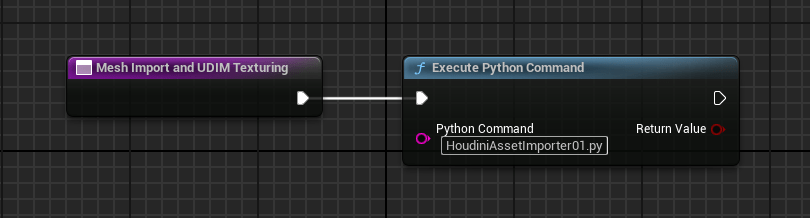
The purple node to the left is a “call function” node, which you add by going to the left pane, under “Event Graph” you’ll see a category called “Functions” with a plus sign to the right. Click on that, and you’ll have a new purple node which you can rename.

Then add a “Execute Python Command” node by hitting the Tab key, and searching for “execute”. You’ll see it in the list there. After clicking on that name, it will create the node. Connect the white arrow from the “call function” node to the “Execute Python Command” node by dragging from the left to the right white arrow.

Inside the “Python Command” text box, you can type the name of the Python script you want to run. You can choose to store those per-project, but I prefer to have them accessible throughout the Engine itself, so I store them here:

YourDrive:\Epic Games\UE_5.3\Engine\Content\Python

If you copy my scripts and save them there with a .py extension Unreal Engine will be able to execute them, no matter what project you’re working on. However, you do need a Editor Utility Blueprint in your project in the Content Browser to do so.

Hope that helps, more to come…

Proof-of-Concept (Updated)

I’ll just quote my prior post and show you some new things, so you know where I’m at.

“Its late for me, and I plan to expand this post a bit later — but I’ve finally done it. Took some geometry from within Houdini, extracted what I needed from it to pipe the output into a custom python voxel writer that outputs Magica-compatible .vox files.”

“The header image you see is Houdini, with a Python shell open showing the output of some things I was keeping track of. Too exciting. Don’t know if I’ll be able to sleep well tonight knowing there’s even more possible now.”

Not perfect, but dammit — it worked. More to do and improve upon.

Houdini has always intrigued me.

I came to know about it via a circuitous route, working with various 3D programs and hearing that there was one that had an alarming deepness to it. This put me off for a while, because the last thing I needed was relearning how to make a cube or somesuch thing.

You know, that sinking feeling in your gut when you realize that in order to use a tool, you have to not only learn IT, but a bunch of principles that went into making it a tool in the first place. This bifurcating knowledge diagram always made me shy away, and frankly, that was a mistake.

Let me demonstrate how deep this rabbit hole can go, with a series of pictures.

Top level – A simple geometry node.

The picture above is a node. A simple geometry node just minding its own business in the node view of Houdini. If you are familiar with other tools that operate on 3D objects, this isn’t a foreign concept. Some game engines have built-in editors that use nodes of a type to process geometry and do other things, like Unreal Engine.

I won’t be referring to these via their “official” pathnames, (offending Houdini purists everywhere) because there is enough to learn and I just want to show you a small part of the complexity (and richness) of Houdini compared to other things. For most programs, you don’t go much deeper than this, maybe a level or so.

Down a level…

Here I’ve clicked on that node and this is what reveals itself. The official path is “/obj/geo1”, but I prefer to describe this as level two. Much like an elevator or a deep mineshaft to the core of the earth, we have much further to go. Next, I’ll click on the “Kino.mVoxelizer1” node.

Level 2 – you may feel your ears popping at this point.

Oh my, a whole bunch of other nodes! This is just two levels down, and you can click on any other one of these and be sucked into yet another level in this hierarchy. Next, I’m going to click on the “voxelize” node.

Level 3 – your heart may feel like its in your throat, hammering away.

Turn your miner’s lamp on, you’re going to need it. Here’s a bunch of other nodes that describe what this sub-node does in its entirety. That is what Houdini primarily is, a bunch of smaller functions/programs that link together and do things. Its a bit like realizing the effort that went into making a toaster – the metals, alloys and other bits that if you had to make from scratch, well, you’d be up the creek, wouldn’t you. Lets just click on one more, shall we? How about “pointsfromvolume1”? Why not…

Level 4 – We have reached total decompression, please wear your oxygen mask and take deep breaths.

This is a “built in” node, courtesy of Houdini, and it does so very much. They allow you to poke around in its innards, if you dare. But for me, its enough that this node exists. Tinkering with any of the predefined nodes in this program is akin to uttering a magic spell and hoping I don’t turn my guts inside-out.

There’s a scene in the 2010 film “Tron: Legacy” where Flynn has to do a bit of digital-genetic surgery to help Quorra recover from a severe injury. That is what this feels like, sinking down into the digital landscape as far as you want, being able to manipulate the very vertexes that polygon-based geometry is made of.

Flynn debugging Quorra’s DNA code.

I’m just on the first steps of this journey down this rabbit hole. Predictably, I had some mistakes and that manifested itself as some artifacts that I need to resolve. Point is, the main concept worked, so now I have a viable path from Houdini into voxel models.

This was previously not done, at least not that I know of — so I’m pretty proud of this.

I’ll update later with more when I have some progress to share.

VTF – Polling And Tick Data

Last time I left off at ditching Tradingview as a quote source. These things happen, and I learned quite a lot along the way, so I’m not troubled by it. Turning locally, as in my own hard drive, I began sifting through the data that gets archived by my chart provider.

Fortunately they aren’t super-protective of their quotes, so the files were essentially text data with some custom file extensions on the end. I began Python-ing a way to get these things filtered and saved in the proper folder for my Teardown mod.

The data is quite orderly:

Date, Time, Open, High, Low, Last, Volume, # of Trades, OHLC Avg, HLC Avg, HL Avg, Bid Volume, Ask Volume
2022/4/4, 13:22:45.0, 4561.50, 4561.50, 4561.50, 4561.50, 3, 3, 4561.50, 4561.50, 4561.50, 0, 3 

After a bit of filtering/detection, I had it doing things like this:

Last line in file: ESM22-CME-BarData.txt is:
2022/4/4, 20:32:40.0, 4571.25, 4571.25, 4571.25, 4571.25, 3, 3, 4571.25, 4571.25, 4571.25, 3, 0

Symbol: ES Last price: 4571.25 Volume: 3
File size in bytes: 12587 

(I’m counting filesize so I can wipe it when it hits a certain size, to keep search times down for some functions.)

One main task I had to figure out was filtering based on futures symbol. Most symbols follow the convention of:

 <symbol><monthcode><YY>

As with anything, there are a few exceptions where the year/month is flipped, but in aggregate my initial function seemed to do the trick.

First try, and boy did I go into deep IF … land on this one.

I realized later on that this first pass wasn’t good enough – it wasn’t behaving EXACTLY as I needed, so it made sense to go through and refactor it into a function (or series of them), that worked how I wanted. Sometimes being “cute” and trying to do too many things at once creates technical debt that bites you in the ass when you least expect it.

After some pseudo-code restructuring to actually plan the flow of what I was trying to do, I came up with this result:

Sometimes breaking up things makes it much cleaner and easier to debug.

I set up a test where I threw it every symbol I had in my local directory to make sure it could handle things:

Remember, I just wanted futures symbols. Stocks and non-recognized/allowed ones should “fail”.

So far, so good! It was nice being able to chuck anything at it, even the dollar-sign prefix ones, and have it handle things in a sane way.

I now had to plan out the pseudo-code for making the main polling loop work. I’m not a Python expert by any means, so I just worked from some examples and adapted it to my purpose. After thinking a bit, I managed to get this flow:

The glorious refactoring pass of my data flow. This document changes as I go along, but its a good way to outline the major steps in execution.

This happens to me sometimes, I’m humming along and Python-ing my way to a given goal, and something gets thrown in my way that I didn’t quite expect.

Debugging isn’t glamorous, there aren’t any hacker-esque (in the hollywood sense) terminals with interesting things being scrolled/displayed/animated on them. Its just my boring Notepad++ open to a file and the shell where I’m running Python commands.

At one point, things were silently failing.

It could be my fault – I’m not an expert, as I said – so I could be structuring things too deeply in terms of logic IF .. THEN or just calling a bunch of functions like a fool. The result was I had to place some Debug statements like — print(“Did I even get to this point?”) in the code to figure out WHERE it was dying.

Not fun, in the least.

At this point, I’m nearly at the end of the Python part of implementing this mod — the rest of the steps are to get the voxel model encoded and saved to the proper directory, then in Teardown have it get read/decoded by a lua script.

So very close…. more to come.

VTF – Quotes And Clever Bastards

There I was, puttering right along and getting some quote data when the unthinkable happened — Tradingview got wise to my quote-scraping ways, and the historical data I successfully was getting turned into error messages from the server. Dang.

The good ‘ol days, when quotes worked and historical data grew on metaphorical trees.

Oh, cruel fate.

I had to regroup and try to salvage something. I had a bunch of regular expressions for filtering Tradingview’s price data, and I didn’t want them to go to waste! After a bit of thinking, I decided to do it the old fashioned way — scrape the Tradingview site directly.

This would require learning yet-another-skill, using a module called “Selenium” for Python. This clever library allows you to dive into page source code for stuff, or open up web pages and even simulate user “clicks” and data entry – for say, logging in.

I got to work, and soon I had something going:

browser.get(url)
browser.implicitly_wait(3)
## Have to use CSS selector when class names have spaces - replace with '.'
login_button_class = "tv-header__user-menu-button"
user_menu_class = "item-4TFSfyGO"
sign_in_email_class = "tv-signin-dialog__toggle-email"
user_name = "username"
browser.find_element(by=By.CLASS_NAME, value=login_button_class).click() # Click on user login
time.sleep(1)
browser.find_element(by=By.CLASS_NAME, value=user_menu_class).click() # Click on dropdown for email
time.sleep(1)
browser.find_element(by=By.CLASS_NAME, value=sign_in_email_class).click() # Click on email for User/Pass dialog
time.sleep(1)
input_username = browser.find_element(by=By.NAME, value=user_name).click() # Click on email for User/Pass dialog
pyautogui.typewrite(user) # works
pyautogui.press("tab") # Tab to next field
pyautogui.typewrite(password)
pyautogui.press("enter")
time.sleep(1)

There’s more setup involved prior to these actions, but I wanted to show the core of what I was doing. Clicking buttons, signing in, all of that. There was a way to cache the result — so I didn’t have to log in every single time, but for some reason that code didn’t work for me. I plowed ahead, undaunted.

A few bazillion log-ins later, and a bunch of “did you just log in from a new device” emails, I was at the page where you could add symbols to a watchlist, and it would helpfully display them on the right hand side of the page. I was set! (Or so I thought.)

No my friends, no such luck. Turns out the Tradingview chaps are quite resourceful. Let me explain.

In the “old days” you could look at a website’s source, it would have its data embedded in the page like “lastprice=46624.50”, which was trivial to scrape.


Well, websites are now reactive and do all kinds of things, which means what I was searching for was deep in the source. And I mean DEEP. Take a look at this relative path here:

/html/body/div[1]/div/div[1]/div[1]/div[1]/div[1]/div[2]/div/div[2]/div/div/div[2]/div/div[4]/div/div/span[1]/span

And that is just for ONE quote, mind you. (20-plus levels deep!)

Even if you got down there, Tradingview made sure to make it as hard as possible. How? Well, if you weren’t paying much attention, you’d pull up your watchlist and it would have some symbols with prices, like this:

DXY 98.62 BTCUSD 46639.25

So just dive down into the source and get it, right? Well, its more complicated than that. They don’t just display the prices in one go — oh no — some evil genius over there decided on any up/down tick to color a RANDOM portion of the quote green or red.

Which means a simple quote of:

46105.20

Turns into:

<span class="inner-ghhqKDrt">4610<span class="minus-ghhqKDrt">5.2</span></span>

So what, right?

It turns out that its monumentally harder to scrape a quote when the style of that quote changes on a whim. So, part of it is white, some of it is red/green at any given point. By splitting the quote apart in a random way, it turns out regular expressions that you’d use to grab it only get a fraction of the “normal” part:

4610 -- instead of -- 46105.20

And since I wouldn’t know which part of the quote is being colored a given style, I couldn’t make precise regular expressions that captured it precisely. This is what is known as a “needle-in-a-colored-haystack” kind of problem.

But — not all is lost. I learned a LOT about grabbing things from pages, so I’m sure that skill will come in handy down the line. After realizing that scraping the Tradingview site was a non-starter, I did some digging and found that my charting program I use has data formatted locally on my drive I could parse.

You live and learn, I suppose.

All I can say though is — whoever designed Tradingview’s quote display system is an evil bastard genius.

And I’d buy them a beer.

More to come…

VTF – Fun With Time

Did I say “fun”? Yes, I did. Though figuring this out initially wasn’t very fun at first. When it comes to price data, you have to know a few things when collating a bunch of historical prices. Namely the duration from one date to the next, or from a point in the past to the present.

My intent with this was to only pull the minimum amount of data from Tradingview, so I didn’t abuse their websocket and cause some admin somewhere to curse at my IP when he viewed the server logs. This requires some time functions, so I set about to make one.

Like any task, sometimes I think “Hey, this is only going to be a few steps.” Then later, when I look up at the clock and its 2am, I realize that I have plumbed a very deep rabbit-hole of specialized knowledge that I only want the barest nuance of.

For instance for my application I want a whole day’s prior data. Turns out there’s 6 bars in a day using a 4-hour period per bar. (6 x 4 = 24, so that is cool.) But, at any given time I start the main polling process, I won’t be precisely 24 hours out, I’ll be 24 + some random interval of time. So I have to calculate the proper offset to get everything up to now.

Okay – no problem, right? Just take a date like March 29th, and subtract one day and start there, right? — well, sure if its the middle or end of the month, what happens when you do it after crossing over to the 1st of the next month?

Oh man…

That means you have to know how many days in a month there are, when they change, and god help you — if its a leap year because Feb will have 29 days instead of 28.

So guess what I did?

I made a function that could determine those transitions – and get this – even CENTURY leap years, which is funny since I’m not going to live long enough to see another one, but hell, I guess I wanted to cover it anyway.

So that is how things sort of expand and become a bit more complex when determining what to do in a program. Here’s what I came up with for basic timestamp stuff:

import datetime
import pytz

timeZone = pytz.timezone('US/Central') # GMT -6 hrs

currDate = datetime.datetime.now(timeZone)

priorNaive = datetime.datetime(2022,3,27,00,00,00)

priorDate = priorNaive.astimezone(timeZone) # Make timezone aware

secElapsed = (currDate-priorDate).total_seconds()

print("Prior Date: " + str(priorDate))
print("Current Date: " + str(currDate))
print("Elapsed seconds: " + str(secElapsed) + "\n")

Which results in two timezone-aware timestamps calculating elapsed seconds:

Prior Date: 2022-03-27 00:00:00-05:00
Current Date: 2022-03-28 21:56:48.813351-05:00
Elapsed seconds: 165408.813351

And just for anyone who needed something that does leap year/century in Python:

import re
import datetime
import pytz
import math

timeZone = pytz.timezone('US/Central') # GMT -5 hrs during CDT, -6 CST

#yearTest = ["2024"]
#dateTest = ["07","04"]

## Month, days - (leap year changes Feb):
## Jan (31), Feb (28 or 29), Mar (31), Apr (30), May (31), Jun (30), Jul (31), Aug (31), Sep (30), Oct (31), Nov (30), Dec (31)
## To be a leap year, the year number must be divisible by 4 except for end-of-century leap years, which must be divisible by 400.
## So the year 2000 was a end-of-century leap year, although 1900 was not. 2024 and 2028 are upcoming leap years
## The below returns YYYY-MM-DD
def dateCalcOffset(myDateList, myYearList): # Checks for leap year/century and month boundary transitions
	months = ["Jan","Feb","Mar","Apr","May","Jun","Jul","Aug","Sep","Oct","Nov","Dec"] # Months for debug, etc..
	numDays = [31,28,31,30,31,30,31,31,30,31,30,31] # Feb can be 29 days if its a leap year
	endOfCentury = "false"
	endOfCentLeap = "false"
	leapYear = "false"
	days = 0
	leapDays = 0
	priorDay = 0
	# Cast these as ints for calcs
	myMonth = int(myDateList[0])
	myDay = int(myDateList[1])
	myYear = int(myYearList[0])
	
	# Leap year - Is it a leap year?
	# First check if its end of century using modulo
	centuryRemainder = myYear % 100
	if centuryRemainder == 0:
		endOfCentury = "true"
		if endOfCentury == "true":
			centuryRemainder = myYear % 400 # If true, check if century leap year
			if centuryRemainder == 0:
				endOfCentLeap = "true"
				#print("Year: " + myYearList[0] + " is an end of century leap year.") # Debug
				# Add extra day if month is February
				if myMonth == 2:
					leapDays = 29
					print("Feb has: " + str(leapDays) + " days.")  # Debug
			else:
				#print("Year: " + myYearList[0] + " is not a end of century leap year.") # Debug
				days = numDays[myMonth-1] # or just return days per month index
				#print(months[myMonth-1] + " has : " + str(days) + " days.") # Debug
	else:
		#print("Year: " + myYearList[0] + " is not the end of a century.") # Debug
		nothing = 0 # Does nothing, but python wants something here if above is commented out lol
		
	# Now check for leap year - only if century check isn't positive
	if endOfCentury == "false" and endOfCentLeap == "false":
		leapRemainder = myYear % 4
		if leapRemainder == 0: # No remainder? Its a leap year
			#print("Year: " + myYearList[0] + " is a leap year.") # Debug
			leapYear = "true"
			# Add extra day if month is February
			if myMonth == 2:
				leapDays = 29
				#print("Feb has: " + str(leapDays) + " days.")  # Debug
			else:
				days = numDays[myMonth-1] # or just return days per month index
				#print(months[myMonth-1] + " has: " + str(days) + " days.") # Debug
		else:
			#print("Year: " + myYearList[0] + " is not a leap year.") # Debug
			days = numDays[myMonth-1] # or just return days per month index
			#print(months[myMonth-1] + " has: " + str(days) + " days.") # Debug
	# Input check - if day is greater than number of days for that month - throw error
	if myDay > days: # Shouldn't happen, but catch it in case...
		print("Input day greater than maximum allowed for month/leap calcs.")
		return
	else: # Do calculations accounting for being first of month from prior month
		if myDay == 1 and endOfCentLeap == "true" or leapYear == "true": # Is it leap year/century?
			if myMonth == 2: # February 1st?
				myMonth = myMonth-1 # Decrement month
				priorDay = numDays[myMonth-1] # Get last day of prior month
			else: # Not the 1st of the month, and not Feb
				if myDay > 1 and myDay <= numDays[myMonth-1]:
					priorDay = myDay-1
		else: # Not a leap year/century
			if myDay == 1: # First of month?
				myMonth = myMonth-1 # Decrement month
				priorDay = numDays[myMonth-1] # Get last day of prior month
			else:
				if myDay > 1 and myDay <= numDays[myMonth-1]: # Not first of month - first week or later?
					priorDay = myDay-1
		
	return myYear, myMonth, priorDay

def getCurrentStamp(myTimeZone): # Takes pytz assigned timezone for calcs
	myCurrentStamp = datetime.datetime.now(myTimeZone)
	
	return myCurrentStamp

def getOffsetStamp(myCurrent, myTimeZone):
	dateRegex = '-(\d\d)' # Splits out stuff after '-' character
	yearRegex = '^(\d\d\d\d)' # Splits out year
	myDateParsed = re.findall(dateRegex, str(myCurrent)) # returns list, element[0] is month, element[1] is day
	myYearParsed = re.findall(yearRegex, str(myCurrent)) # returns list, element[0] is year
	offsetDate = dateCalcOffset(myDateParsed, myYearParsed)
	myPriorNaive = datetime.datetime(offsetDate[0],offsetDate[1],offsetDate[2],00,00,00) ## Year,Month,Day,Hr,Min,Sec
	myPriorStamp = myPriorNaive.astimezone(myTimeZone) # Make timezone aware
	
	return myPriorStamp

def elapsedSeconds(myCurrent, myPrior): # Gets elapsed from two time-zone aware datestamps
	ttlSeconds = (myCurrent-myPrior).total_seconds()
	return ttlSeconds

def numOfBars(mySeconds, barInterval): # Takes total seconds, Bar interval in minutes
	barSeconds = barInterval * 60
	ttlBarNum = math.trunc(mySeconds / barSeconds) # Drop decimals, can't get a fraction of a bar
	
	return ttlBarNum

#--------------- Testing Functions

#today = getCurrentStamp(timeZone)

#offset = getOffsetStamp(today, timeZone)

#secondsBetween = elapsedSeconds(today, offset)

#barResolution = 240 # Minutes

#howManyBars =  numOfBars(secondsBetween, barResolution)

#print("Todays timestamp: " + str(today))
#print("Prior timestamp: " + str(offset))
#print("Elapsed seconds: " + str(secondsBetween))
#print("Elapsed minutes: " + str(math.trunc(secondsBetween/60)))
#print("Elapsed hours: " + str(math.trunc((secondsBetween/60)/60)))
#print("Retrieve " + str(howManyBars) + " bars of historical data.")

Yes, I included the other functions and my commented-out testing statements for completeness. The output looks like this:

Todays timestamp: 2022-03-29 13:09:16.194627-05:00
Prior timestamp: 2022-03-28 00:00:00-05:00
Elapsed seconds: 133756.194627
Elapsed minutes: 2229
Elapsed hours: 37
Retrieve 9 bars of historical data.

Now I’m set to do all kinds of time things with bar data! It only took plenty of TIME to figure it out, lol.

More to come…

VTF – Parsing The Sea Of Quotes

Like most things, if I think its going to be easy I usually find some stones I need to hop over to make some progress. Last time, we left off with me using Tradingview’s websockets to grab some quote data. The result of which looks a bit like this:

{"i":0,"v":[1648224000.0,44345.51290507,44590.0,44050.0,44452.0,541.3003276299921]},
{"i":1,"v":[1648238400.0,44452.74643167,44636.0,44275.0,44337.0,318.5197989300029]},
{"i":2,"v":[1648252800.0,44336.0,44477.0,44112.0,44441.0,193.30515490000215]},
{"i":3,"v":[1648267200.0,44434.07106376,44559.28387061,44379.0,44534.02163765,236.48303291000155]},
{"i":4,"v":[1648281600.0,44521.0,44598.0,44329.0,44335.0,158.88092032999873]},
{"i":5,"v":[1648296000.0,44335.0,44406.0,44165.0,44241.0,146.44034252999973]}],
"ns":{"d":"","indexes":[]},"t":"s1","lbs":{"bar_close_time":1648310400}}},

What the eff does that stuff mean? Let me elaborate.

The first line : 1648224000.0,44345.51290507,44590.0,44050.0,44452.0,541.3003276299921 — Unix timestamp, Open, High, Low, Close, Volume
So that timestamp would be – Friday March 25th 2022 11am DST. There’s a lot of numbers after the decimal, I only need two — so that entry would really read:
Open: 44345.51, High: 44590.00, Low: 44050.00, Close: 44452.00 Volume: 541.30
I was able to specify 240 minute (4-Hour) bars which makes it pretty easy to get a whole day in just a few entries, since 6 bars = 24 hours. Seems easy, right? All I need to do now is to parse that and write it in a way that makes sense for my encoder.

Here it is looking a bit more formatted:

Index,Date,Open,High,Low,Close,Volume
0,"03/25/2022, 03:00:00",43911.22112839,44654.67307908,43606.0,44600.0,915.298048519977
1,"03/25/2022, 07:00:00",44601.0,45082.0,44236.0038521,44346.0,1818.5557992299166
2,"03/25/2022, 11:00:00",44345.51290507,44590.0,44050.0,44452.0,541.3003276299921
3,"03/25/2022, 15:00:00",44452.74643167,44636.0,44275.0,44337.0,318.5197989300029
4,"03/25/2022, 19:00:00",44336.0,44477.0,44112.0,44441.0,193.30515490000215
5,"03/25/2022, 23:00:00",44434.07106376,44559.28387061,44379.0,44534.02163765,236.48321299000156
6,"03/26/2022, 03:00:00",44521.0,44598.0,44329.0,44335.0,158.88092032999873
7,"03/26/2022, 07:00:00",44335.0,44406.0,44165.0,44211.0,196.8329842700001
8,"03/26/2022, 11:00:00",44207.0,44472.0,44152.89142732,44367.0,138.23807569000022
9,"03/26/2022, 15:00:00",44364.0,44785.0,44257.0,44473.0,372.51797744998487

Next steps will be getting more than one quote at a time, which should be possible. In the end I’ll have quite a few of them interleaved among each other, which means I need to lean hard on regular expressions to sift through the sea of data.

(Some time later)

I’m deep into Regular Expressions, a way to sift through the alphabet soup of data and pick out the things that I want. There’s some nice tools out there to help, like regex101 dot com, but its still pretty arcane syntax-wise.
Making some progress, but its getting tricky. Let me explain. I’m using websockets, so I see the data coming from the server and it gets dumped to the console. Problem is, using Regex means it parses whatever it gets its little grubby hands on, which means it could be influenced by debug messages I dump to the console too – a bit like double-dipping into a stream.
So I have to figure out how to debug the program without messing up the datasource. Or at least I think I do at this point. Its messing with my head 🙂
I might be able to get ahead of it by flagging my debugging messages in a way so that it will ignore that, but work on the other data. Maybe… or… split out the results and save them to a file so it doesn’t “pollute” the same stream of data I’m trying to parse.

(Which is really what I should be doing, I think.)

Hoo boy, my head hurts. But I think I have it finally.

This is the data that I’ve been dealing with — just so you have an idea what it looks like raw from the websocket itself:

quote_session ID generated qs_yngjrgxzshkg
chart_session ID generated cs_vfiuozaqmkwh
~m~361~m~{"session_id":"<0.18544.193>_sfo-charts-18-webchart-5@sfo-compute-18_x","timestamp":1648480416,"timestampMs":1648480416379,"release":"registry.xtools.tv/tvbs_release/webchart:release_205-53","studies_metadata_hash":"79c6b847bdfc53283f5b5f6e28f71f7baa91e9f2","protocol":"json","javastudies":"javastudies-3.61_2183","auth_scheme_vsn":2}

~m~484~m~{"m":"qsd","p":["qs_yngjrgxzshkg",{"n":"BITFINEX:BTCUSD","s":"ok","v":{"volume":4537.63954264,"update_mode":"streaming","type":"crypto","short_name":"BTCUSD","rtc":null,"rchp":null,"pro_name":"BITFINEX:BTCUSD","pricescale":10,"original_name":"BITFINEX:BTCUSD","minmove2":0,"minmov":1,"lp_time":1648480412,"lp":47748.0,"is_tradable":true,"fractional":false,"exchange":"BITFINEX","description":"Bitcoin / Dollar","current_session":"market","currency_code":"USD","chp":2.0,"ch":935.0}}]}~m~65~m~{"m":"quote_completed","p":["qs_yngjrgxzshkg","BITFINEX:BTCUSD"]}

So after many attempts that failed, I finally came up with some regex that could filter it into this:

BITFINEX:BTCUSD
Volume: 4537.63979476
Price: 47748.46935417
BITFINEX:BTCUSD
Volume: 4537.67328922
Price: 47748.0
BITFINEX:BTCUSD
Volume: 4537.94068011
Price: 47734.0
BITFINEX:BTCUSD
Volume: 4538.05830511
Price: 47737.0
BITFINEX:BTCUSD
Volume: 4538.90654622
Price: 47732.0
BITFINEX:BTCUSD
Volume: 4539.06445621
Price: 47727.62184819

It took quite a bit to get that all working. Here’s a sample of some of the regex I used:

priceRegex = '\"lp\":(\d+.\d+)'

Make sense to you? Me either, which is why I’m super-glad that sites like regex101 dot com exist. Next, I’ll have to figure out duration between two dates in order to calculate how much quote data to ask for historically.

Until next time…

VTF – Signs And Quote Data

I said I’d fix all the quoteboard signs, and I did – took a bit of work since I had to do all the contract names and the months (for futures), but it was worth it. Here’s the final result:

Note the visual “weight” is all consistent now. I love the results! Not displaying months yet, but they’re done and look good too.

I also figured out how to implement a “style” layer for colors on the different columns, which allows me to do different things per display element.

Multi-color! Looking pretty good – and necessary for some elements I’ll be displaying, like volume.

A quoteboard is useless without data. I’ve been displaying the same test string over and over just to get the sprite drawing done right, but now its time to get the real deal. I’m doing something a bit unorthodox, since Teardown doesn’t allow you to do direct file read/writes. (For security purposes, which I understand.)

Funny thing, while I was working on this I realized that some of the quote data I wanted to display would take one more column to do so. I’m glad I caught that early, because it would’ve been painful to rework all the boards later on when they had surrounding structures and things. Its always the details that bite you if you’re not careful.

This will probably take more than one post, but I wanted to outline my meandering path towards figuring out how to get some data to display on the boards. As I mentioned, my method for importing data into Teardown is unorthodox, since I’m doing an “out-of-band” method to encode data into vox models.

So, where to get data?

My first thought was using some publicly available services that have some limited free data, using an API (Application Programming Interface) key. I futzed around with a few, but that approach rubbed me the wrong way because it seemed really easy to run up against their query frequency limits.

I wasn’t trying to do anything TOO crazy, but even a moderate polling interval would make it so I’d run up on their limit, and encroach into territory that required paid services. I’m sure that design decision was intentional on their part – not that I blame them, really.

While doing quote source research I realized the big “SPOOOOS” contract had been delisted at the CME. They started trading on April 21st, 1982 and were delisted in September 17th, 2021 – a total of 39 years! I was present on the floor for some of those years, so that hit me pretty hard. I guess the E-Mini was more popular, since its still active. Rest In Peace, spoooos! (We called them that on the floor, probably because when it was september the contract month code is “U”, so SPU sounds like Spoooos.)

Finding ticker data sources is easy, the problem is whether you want to pay $1 – 2,000 USD (per year, about $100/mo) for a full range of data or scrape it from somewhere that has it already. Since this is a hobby project, I’m going to scrape some free sources instead. I need a combination of historical data – so I can get 24/hr and all-time highs and lows as well as current open/high/low/close stuff, and a method to get direct live quotes (semi-delayed is fine) for when I’m updating the boards in real-time mode.

One source I considered was Tradingview.

You know when you have what you think is a clear goal and you just need to achieve one more step? Well, I went down a total rabbit hole when it came to Tradingview and its streaming quotes. I found some Python code “in the wild” that allowed negotiating with their websocket to grab quotes – it was not-so-helpfully formatted like this:

~m~147~m~{"m":"qsd","p":["qs_ofmdqrghftjd",{"n":
"CME_MINI:ESM2022","s":"ok","v":{"volume":442387,
"lp_time":1648220119,"lp":4533.25,"chp":0.46,
"ch":20.75}}]}

All I cared about is getting the “lp” which was “last price” and the volume. Though the timestamp was helpful and the “chp” (Change percentage) and “ch” (Net change) was a nice added bonus. However, I needed more than just one instrument at a time, which required some more Python-ing.

More to come…